# Test App
Testing and shipping are the final steps towards having your App on [Salla App Store](https://apps.salla.sa/). These steps are critical and are simplified in this article.
## 📙 What you'll learn:
In this article we'll go through the App testing to test the App functions using a [demo store](https://salla.dev/blog/how-to-test-your-app-using-salla-demo-stores/).
- [How to Test your Shipping App ](#how-to-test-your-shipping-app)
### How to Test your Shipping App
App testing is important in order to discover defects/bugs before publishing, this guarantees that the App functions perfectly. Salla offers demo stores where developers can test their Apps.
Testing the Shipping App on [demo stores](https://salla.dev/blog/how-to-test-your-app-using-salla-demo-stores/) provides a safe and controlled environment to evaluate App functionality and performance, helping the developer verify App behavior before publishing it.
#### App Testing Scenarios
The developer can test the Shipping App with a Salla demo store to check the link between the App and Salla stores, there are a number of [events](https://docs.salla.dev/doc-422994) that are triggered in the store including `shipment.creating` which is triggered by either changing the order status to *Completed* or by the merchant generating a shipping policy. In this testing scenario we will illustrate the merchant generating a shipping policy.
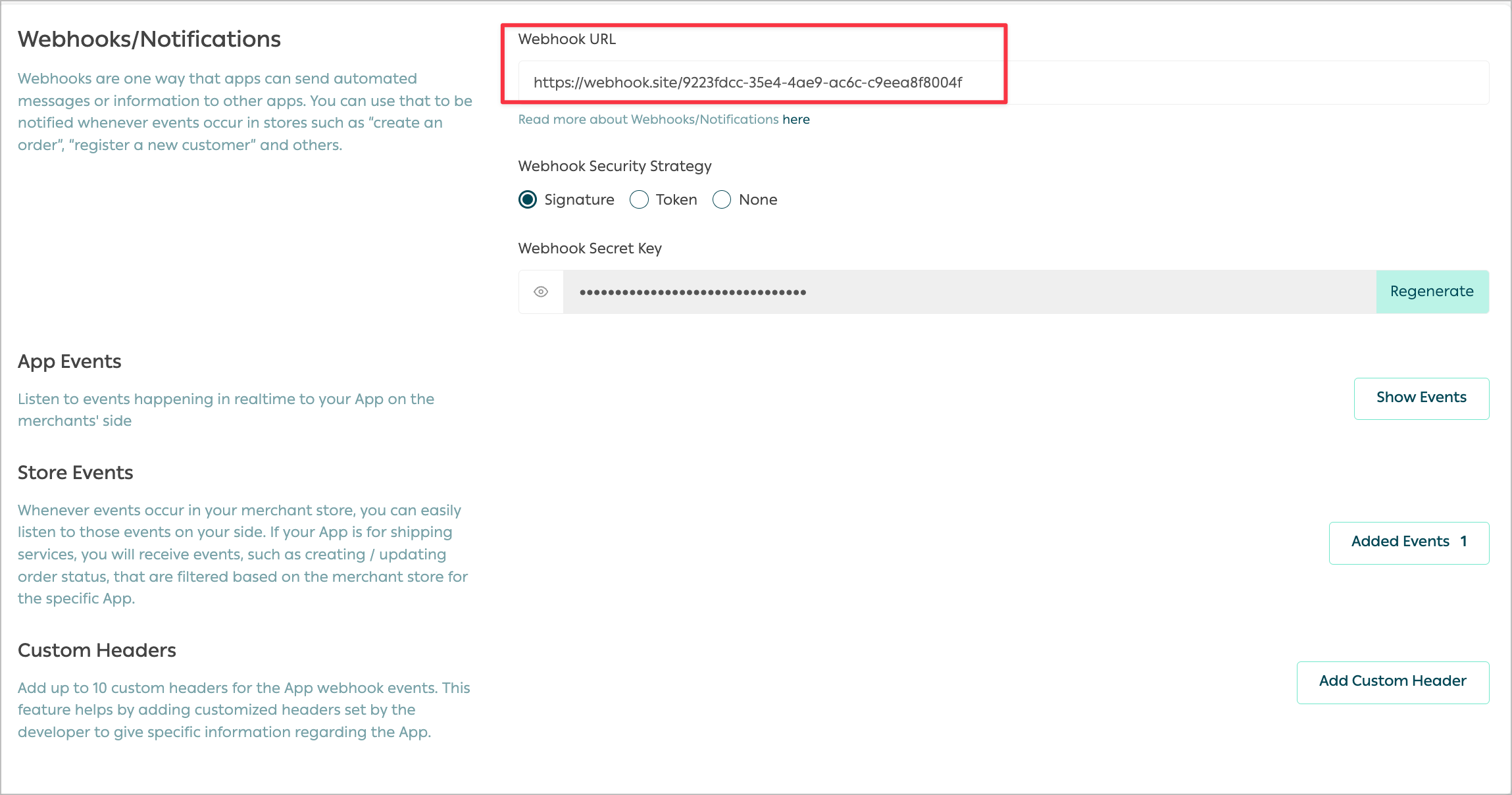
The developer will need to set up the App's Webhook URL to receive the store notifications, for the sake of this test we will [set up a workable URL](https://salla.dev/blog/how-to-test-your-app-using-salla-demo-stores/) from https://webhook.site/. This will act as Salla Server, which will allow the developer to listen for Salla webhooks.
Create a [demo store](https://salla.dev/blog/how-to-test-your-app-using-salla-demo-stores/).
Install and authorize the App on the demo store.
Create an order on the Demo Store dashboard.
Generate a Shipping policy.
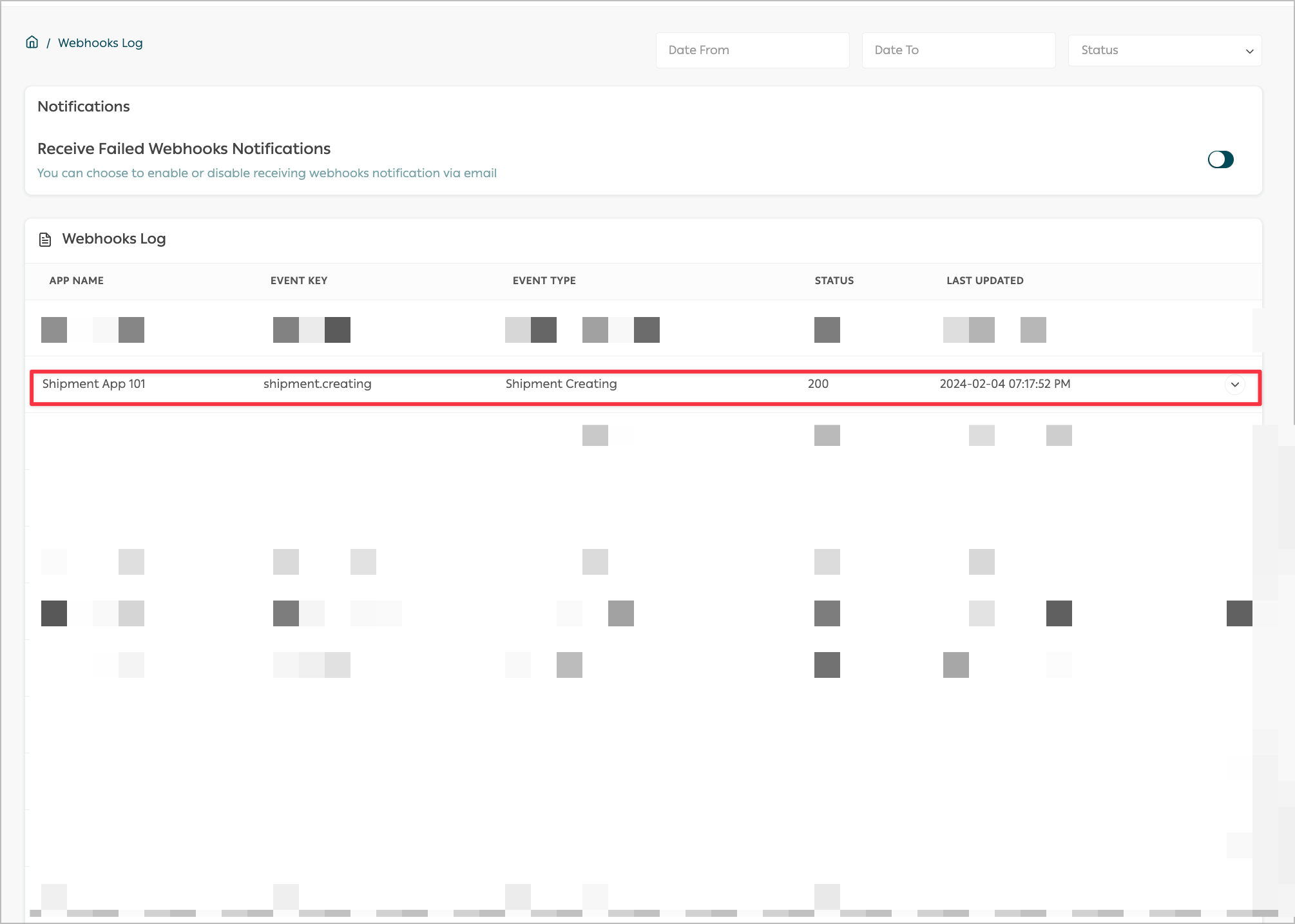
After finishing all the steps, the developer can check the [Webhooks Log](https://salla.dev/blog/the-new-salla-apps-events-activity-log/) on the [Salla Partners Portal](https://salla.partners/login)
to see the triggered event, which in our scenario is `shipment.creating`.
The above summarized steps are explained below in more details including images for an elaborated explanation.
The developer may proceed to *App Details* page in the [Partners Portal](https://salla.partners/) to start the App testing.
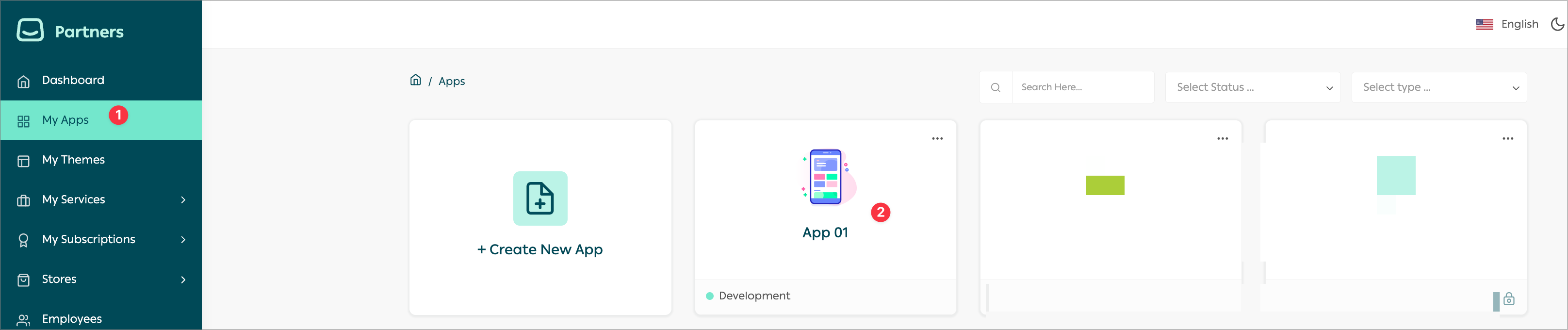
1. [Set up the webhook URL](https://salla.dev/blog/how-to-test-your-app-using-salla-demo-stores/) using [Webhook stie](https://webhook.site). More details in [here](https://salla.dev/blog/how-to-test-your-app-using-salla-demo-stores/).
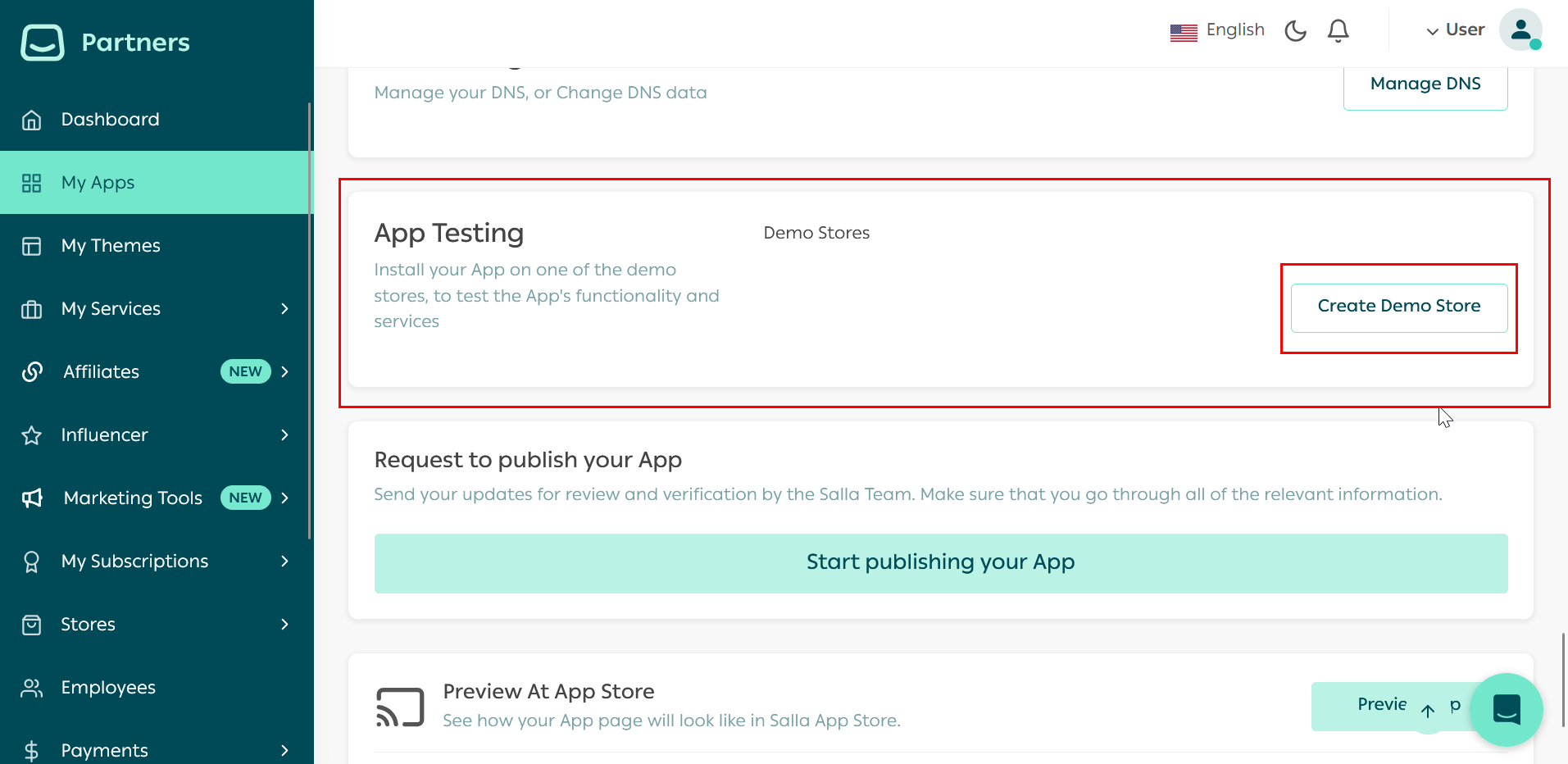
2. Scroll down to App Testing section to create a demo store and click on "Create Demo Store"
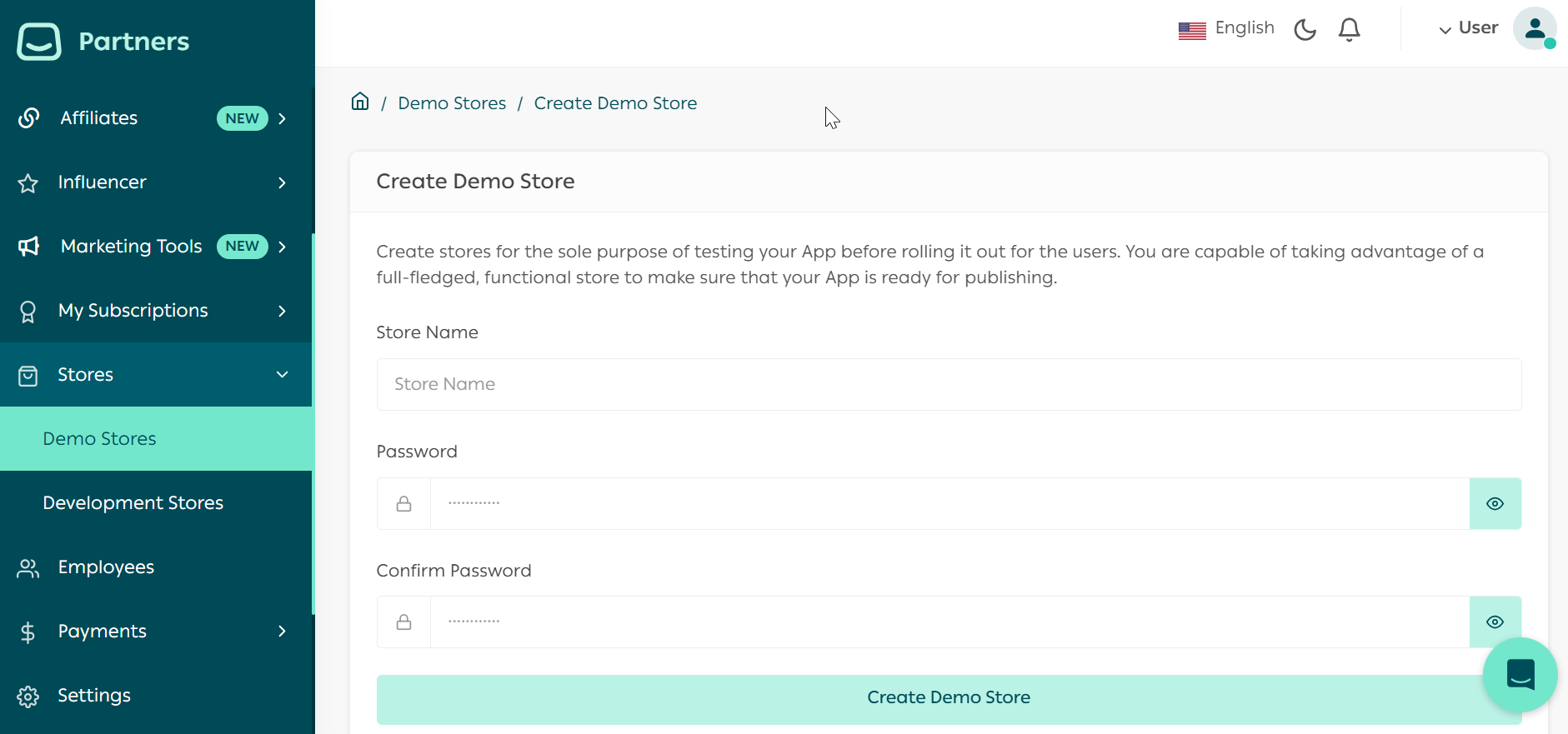
This will prompt a from for Demo Store details
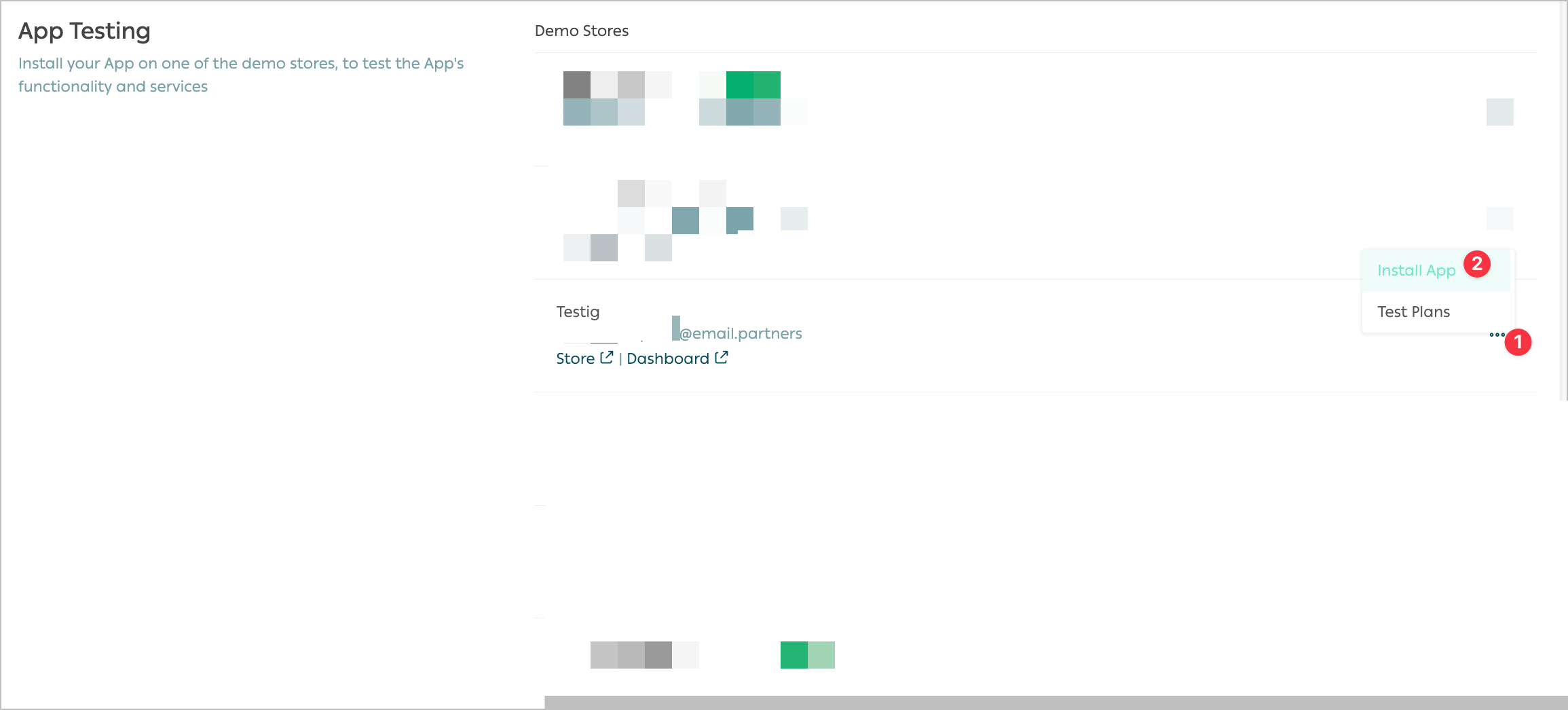
3. After [creating](https://salla.dev/blog/how-to-test-your-app-using-salla-demo-stores/) a demo store , click on *Install App* button located on the right of the demo store chosen.
This will prompt an authorization request as customary to the real time experience.
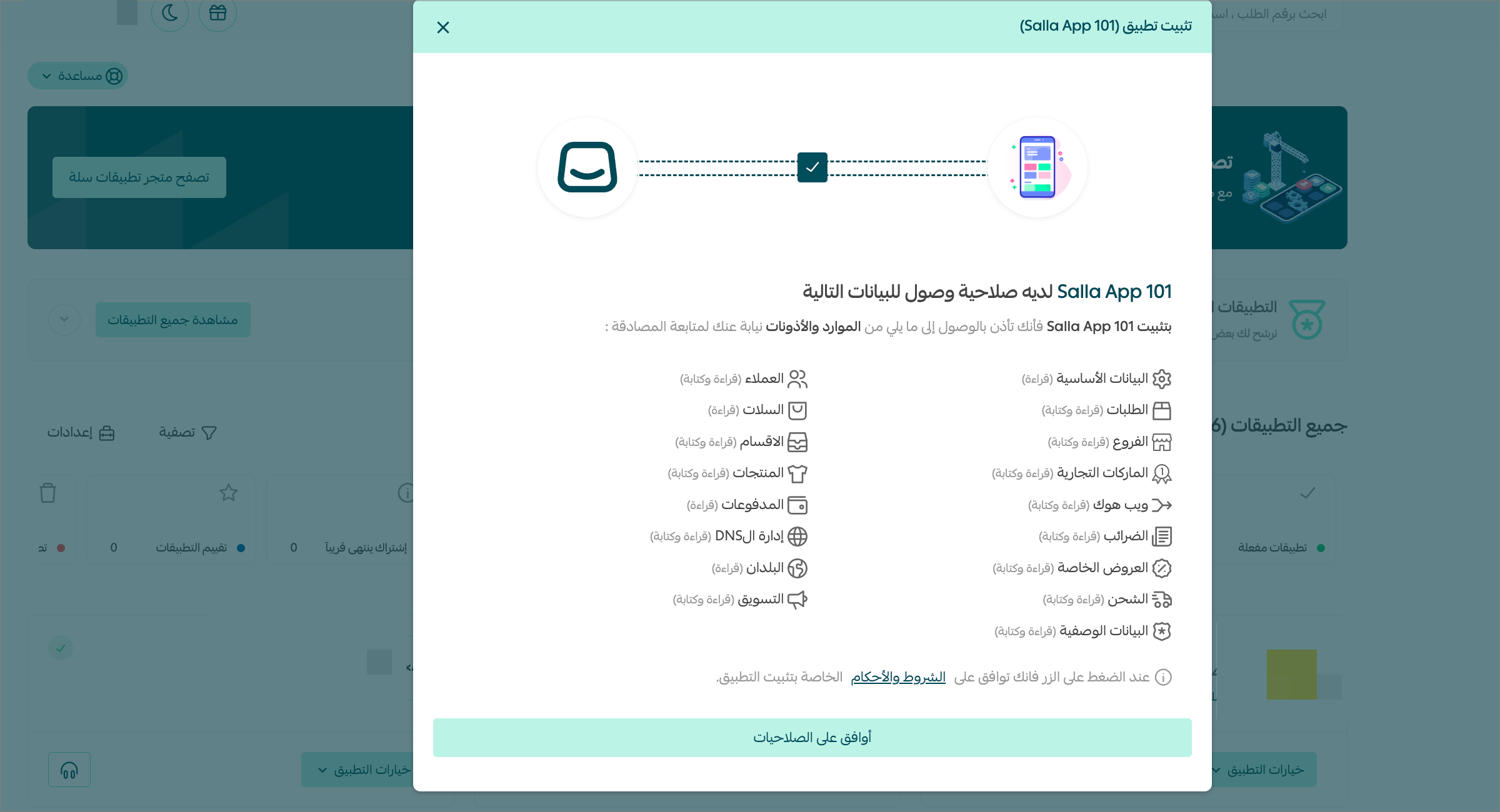
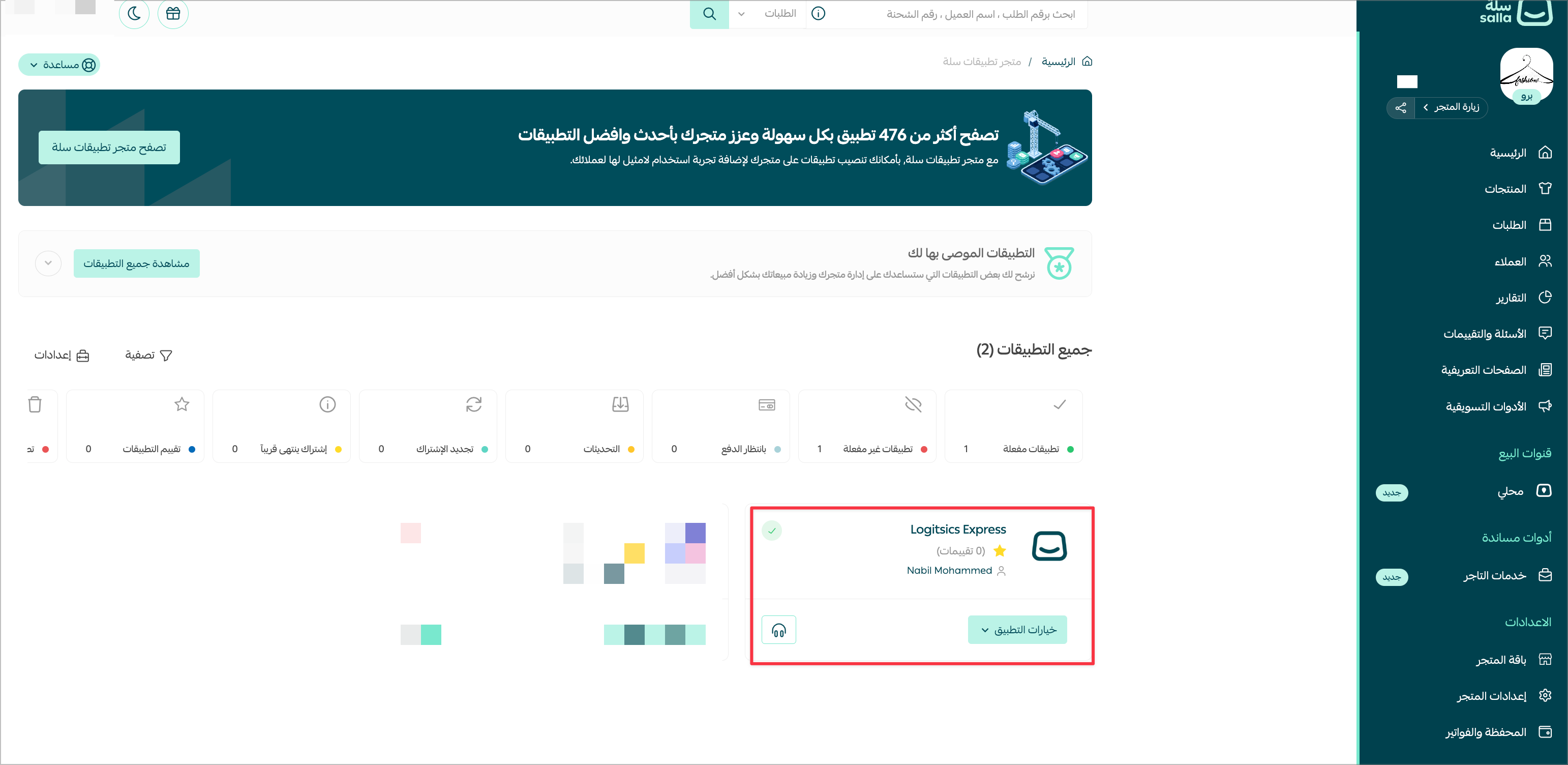
Click on *Authorize App*, which will redirect the page to the demo store where the developer can test the Shipping App.
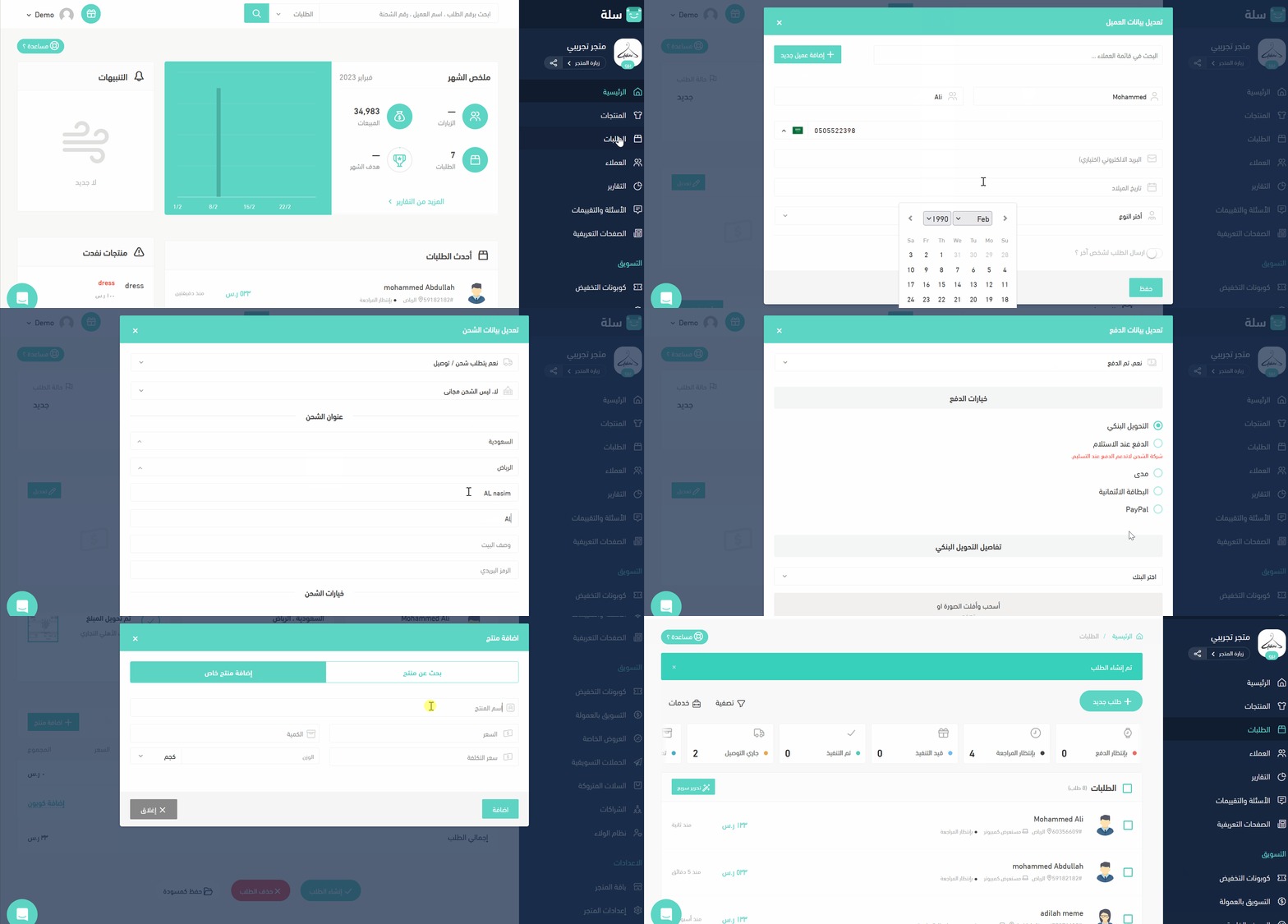
4. Create an Order on the demo store, by clicking on *Orders* on the right side of the page.
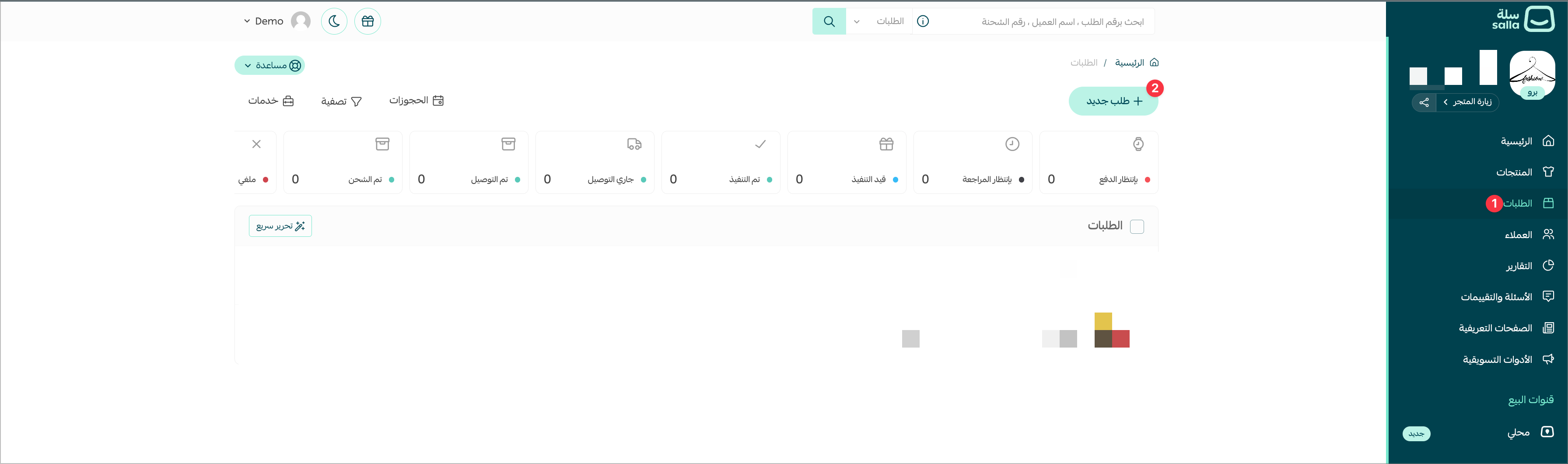
- Click on create new order, and fill up creating Order details as shown below.
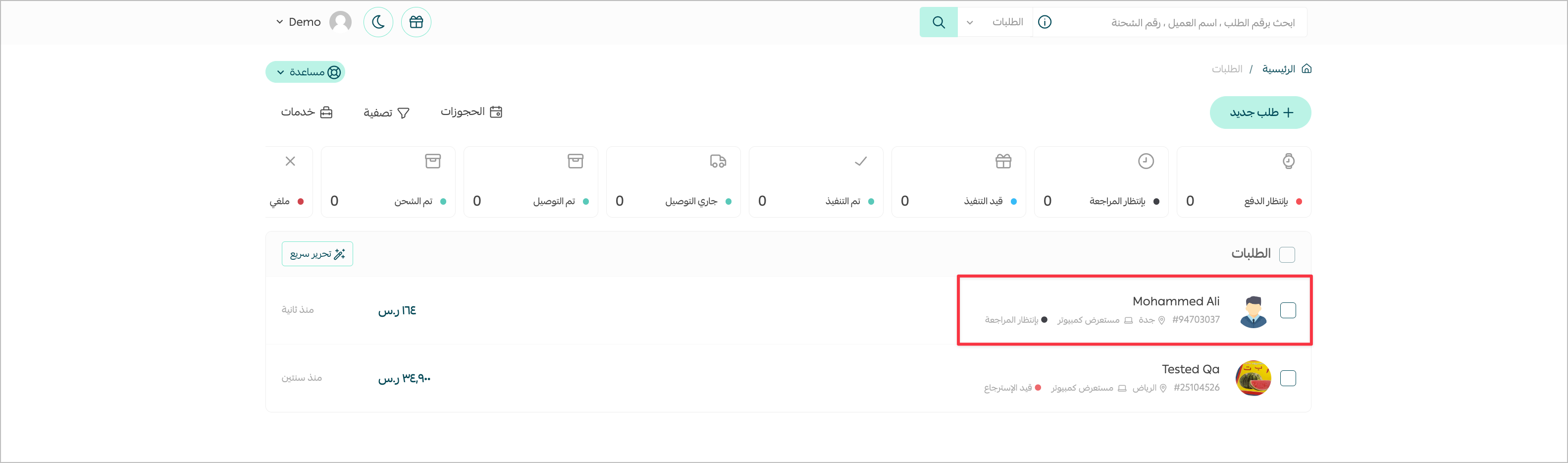
- On the *Orders* page. Click on the order you just created to generate a Shipping policy.
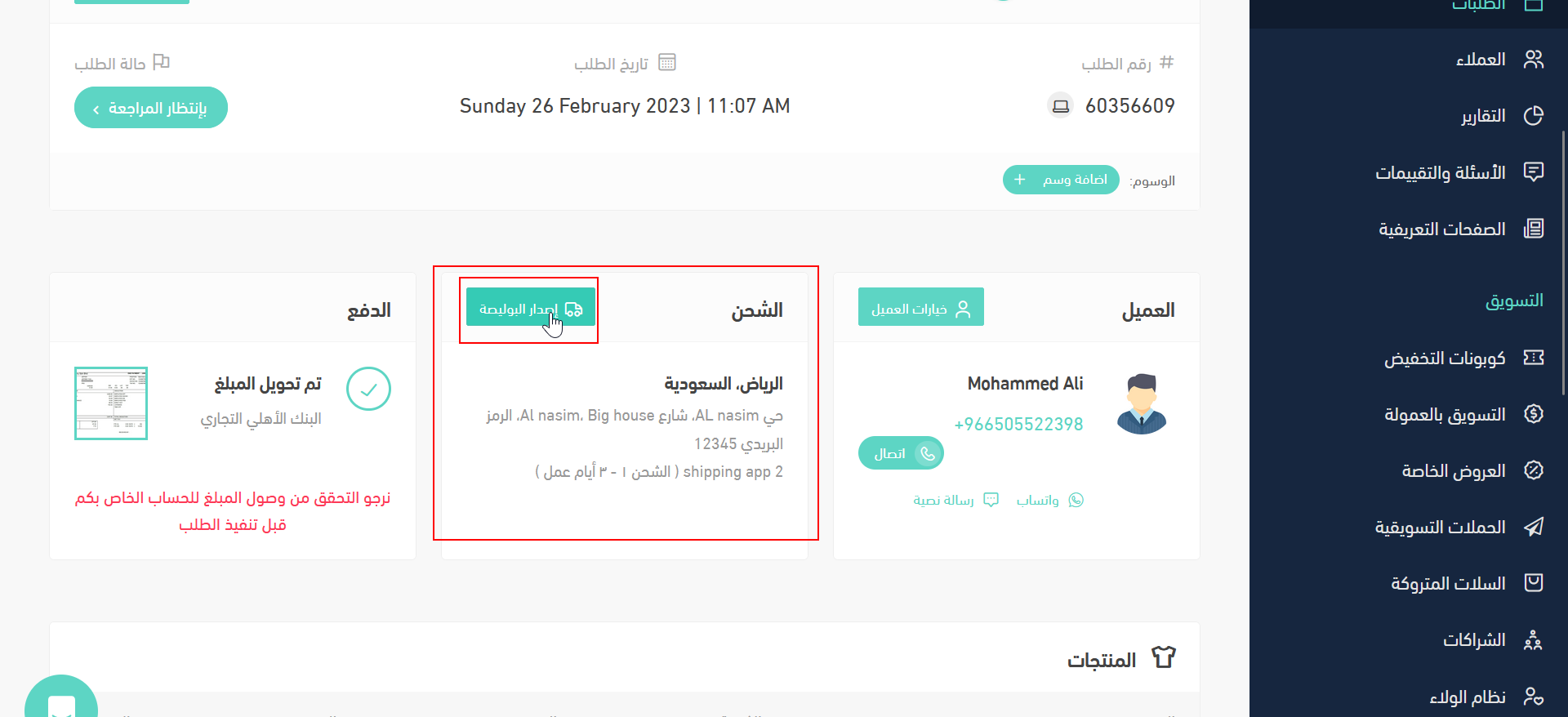
Then, click on *Issue Policy* in the shipment section.
This action will trigger the event `shipment.creating` which you can view in [Partners Portal](https://salla.partners) [Webhooks Log](https://salla.partners/logs)
The Shipping App must return shipment and return shipment AWB after the Shipping App receives the `shipment.creating` event.
:::highlight green
**Well done!! 🎉** you have successfully Tested the Shipping App using a demo store and generated a shipping policy to listen to Webhook notification of the App. The App is now ready to go through [Publishing process](https://docs.salla.dev/doc-422990?nav=01HNA8M216X4HFNGWM9TWSTCKQ).
:::
Make your Shipping App a hit using these simple [tips](https://salla.dev/blog/make-your-app-popular-with-these-simple-tips/)!