# Options
In this article, we will list the group components in order to create the options related to the product. For example, the product's colors and size, which we need some special text components to display them.
**Following is the location of a product's options components:**
```shell
└── src
├── views
├── components
| ...
| └── product
| | └── options
| | ├── color.twig
| | ├── date.twig
| | ├── datetime.twig
| | ├── donation.twig
| | ├── image.twig
| | ├── multiple-options.twig
| | ├── number.twig
| | ├── single-option.twig
| | ├── splitter.twig
| | ├── text.twig
| | ├── textarea.twig
| | ├── thumbnail.twig
| | └── time.twig
| ...
...
```
Following are the option components which can be used to create a product's options :
- [Color](#color)
- [Date](#date)
- [Datetime](#datetime)
- [Donation](#donation)
- [Image](#image)
- [Multiple Options](#multiple-options)
- [Number](#number)
- [Single Option](#single-option)
- [Splitter](#splitter)
- [Text](#text)
- [Textarea](#textarea)
- [Thumbnail](#thumbnail)
- [Time](#time)
## Color
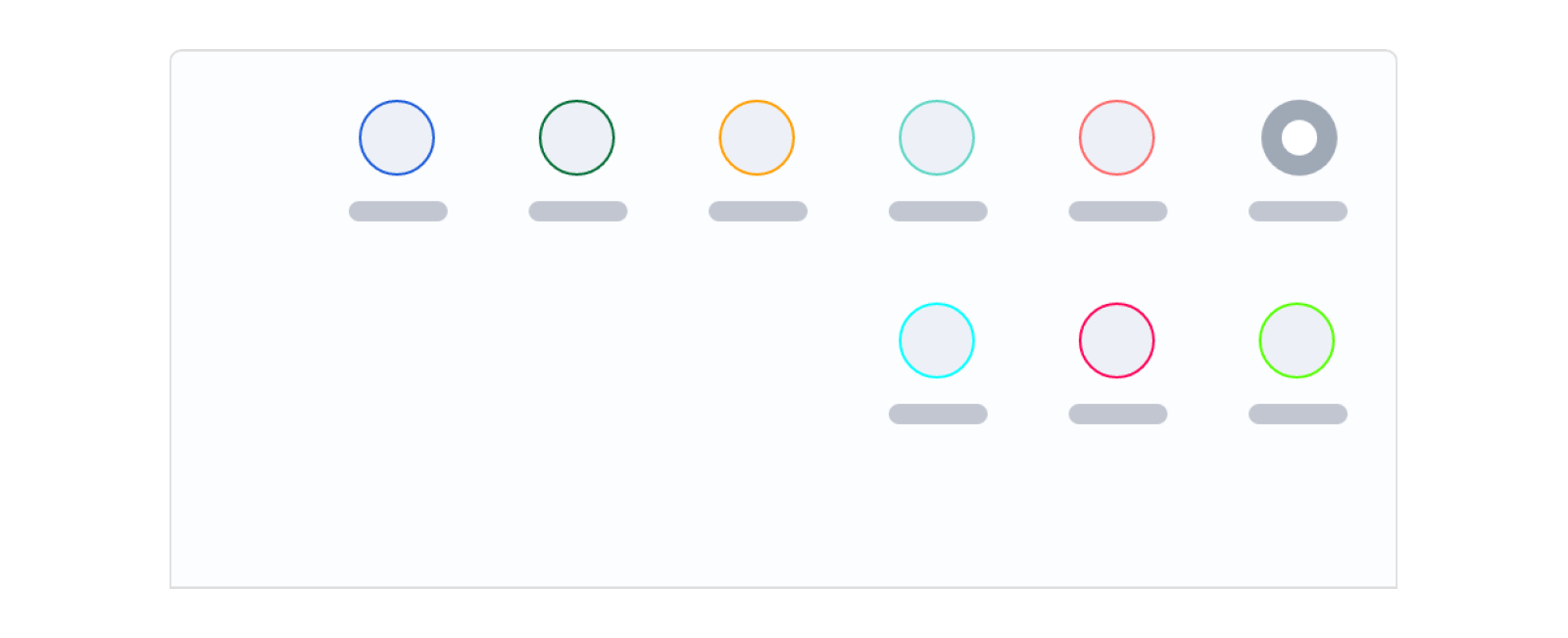
This component is a set of options rendered as colors, in which the customer can select the color they want. It can be useful to present a product's color.
### Example
### Variables
### Usage
The HTML element _input_radio_ is used to allow customers to select one item at a time. The details of the product's colors can be displayed using a _for-loop_ statement through the `details` object.
```js
{% for detail in option.details %}
{{ detail.name }}
{% if detail.is_out %}
Out of stock
{% endif %}
{% endfor %}
```
## Date
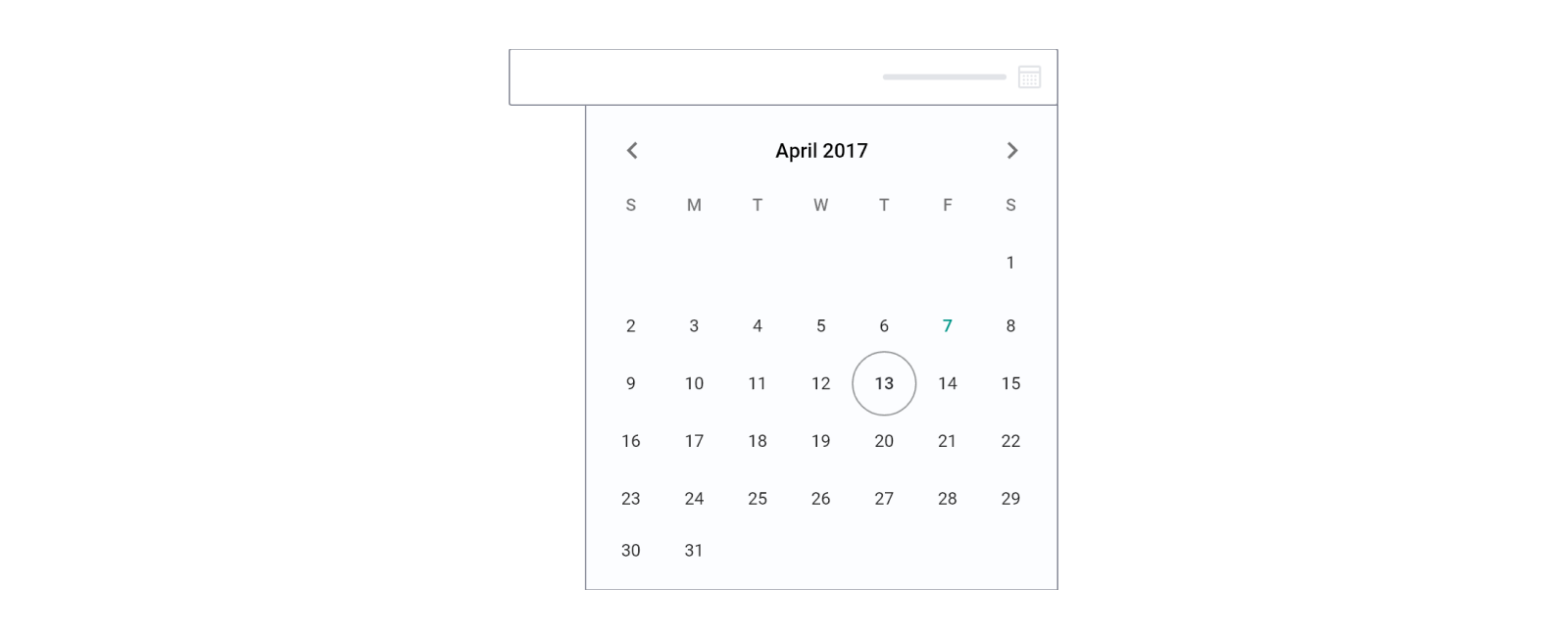
This component works as a date picker to allow customers to select a date. It can be used as an input field for the delivery date, as an example.
### Example
### Variables
### Usage
The HTML element _input_ is used to show this component with some predefined attributes.
```js
```
## Datetime
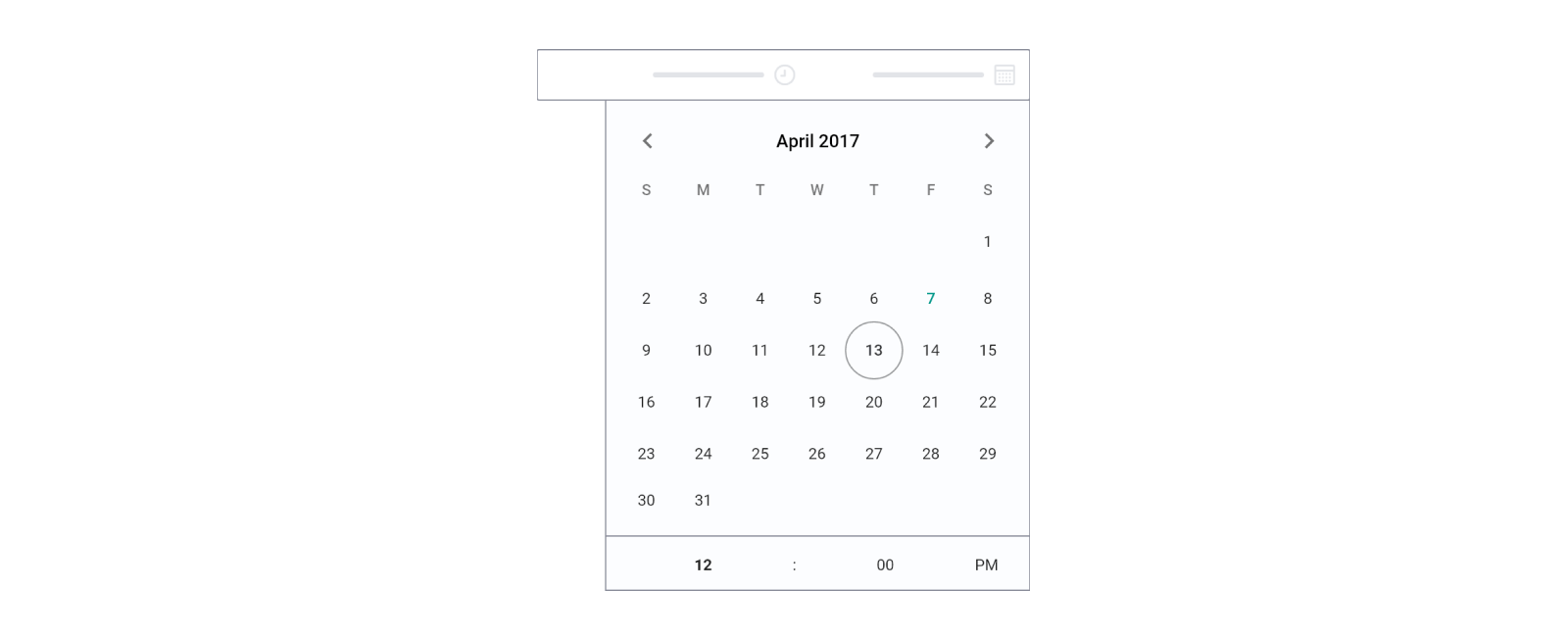
This component works as a date-and-time picker to allow customers to select a date and time. It can be used as an input field for the delivery date and time, as an example.
### Example
### Variables
### Usage
The HTML element _input_ is used to show this component with some predefined attributes. Some of the main variables here are `option.placeholder` and `order_times`.
```js
```
## Donation
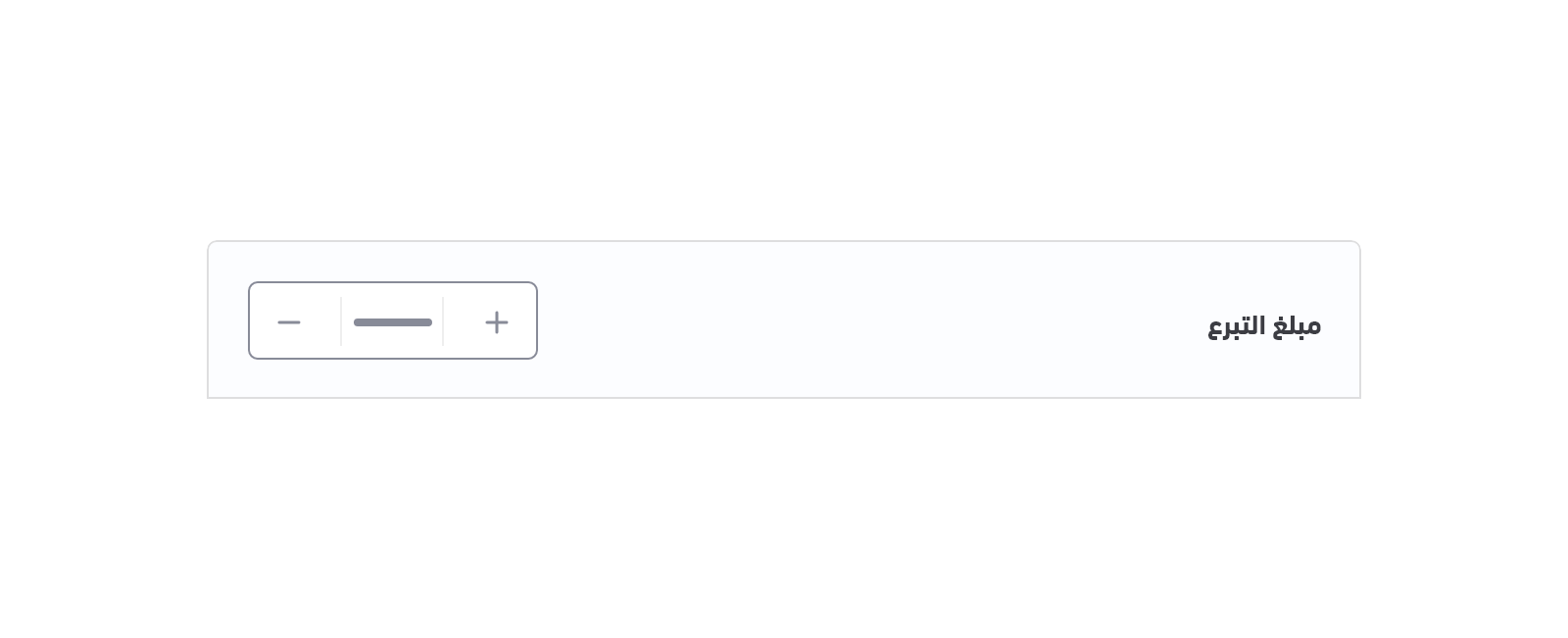
The donation component is a track bar that allows customers to set or adjust a donation value. When the customer changes the value, the donation amount will take the value of this track bar.
### Example
### Variables
### Usage
In order for the customer to make a donation using the currently being viewed product, that product should allow donations. This can be checked by checking the variable `product.can_donate`. The price of that product can also be used as a default value by using ``.
To check if the donation target has been accomplished, the developer can use the variable `product.donation.completed`.
```js
{% if product.can_donate %}
Donation Amount
...
{% else %}
{% if product.donation.completed %}
Donation Exceed Target Amount
{% else %}
Donation Exceed Target Date
{% endif %}
{% endif %}
```
## Image
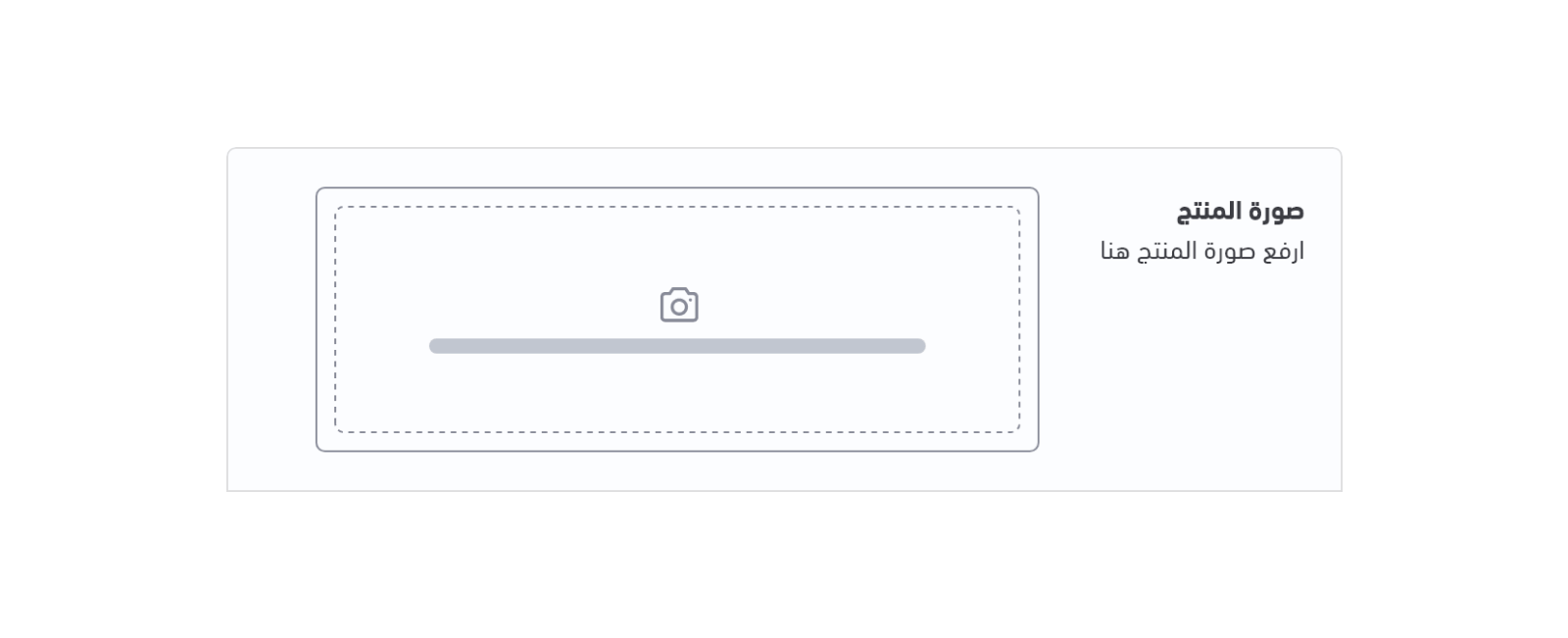
This component gives the user the ability to upload an image from the product page. It can be used in many ways, such as allowing customers to send more details about the product they require.
### Example
### Variables
### Usage
The HTML element _input_ is used to show this component with some predefined attributes.
```js
```
## Multiple Options
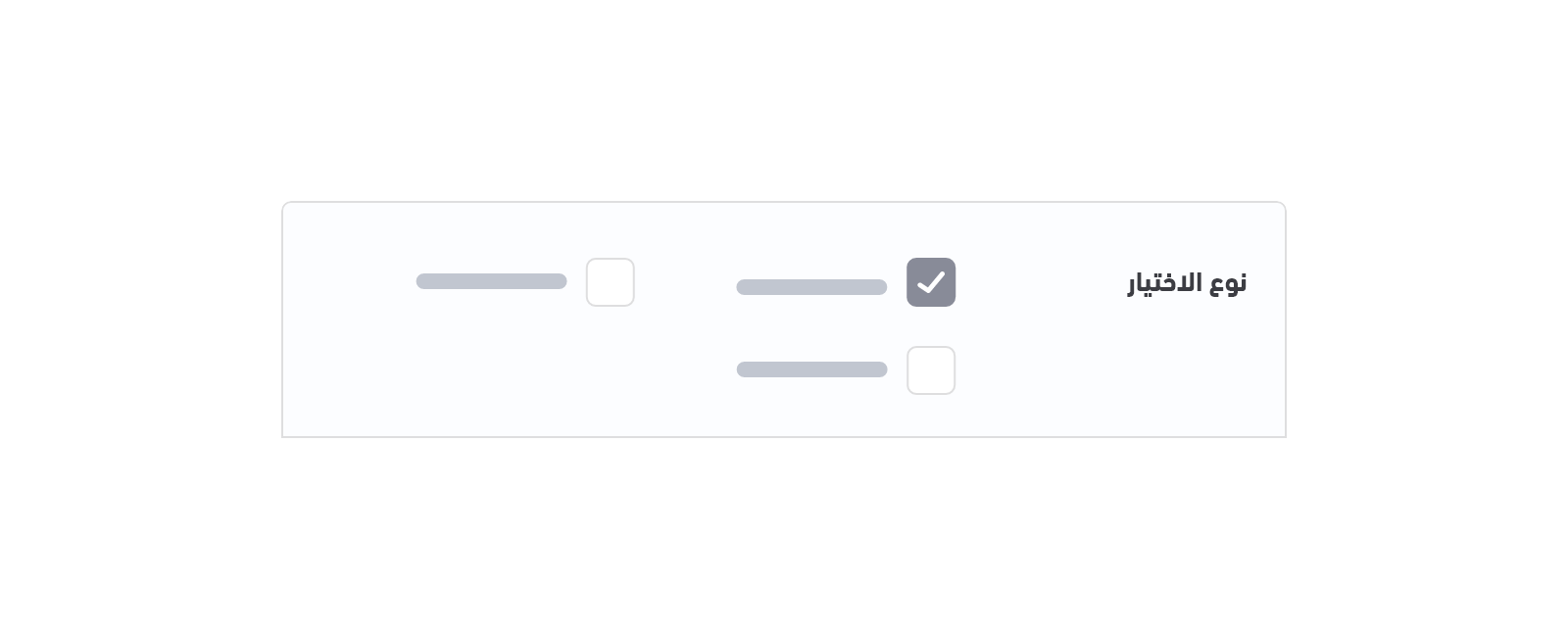
This component works similarly to "checkboxes" to allow the user to select one or more options from a set.
### Example
### Variables
### Usage
The list of given options to the user can be retrieved and displayed using the _for-loop_ statement through the `option object. This list of options includes details such as `full_name`.
```js
{% for key,detail in option.details %}
{{ detail.full_name }}
{% endfor %}
```
## Number
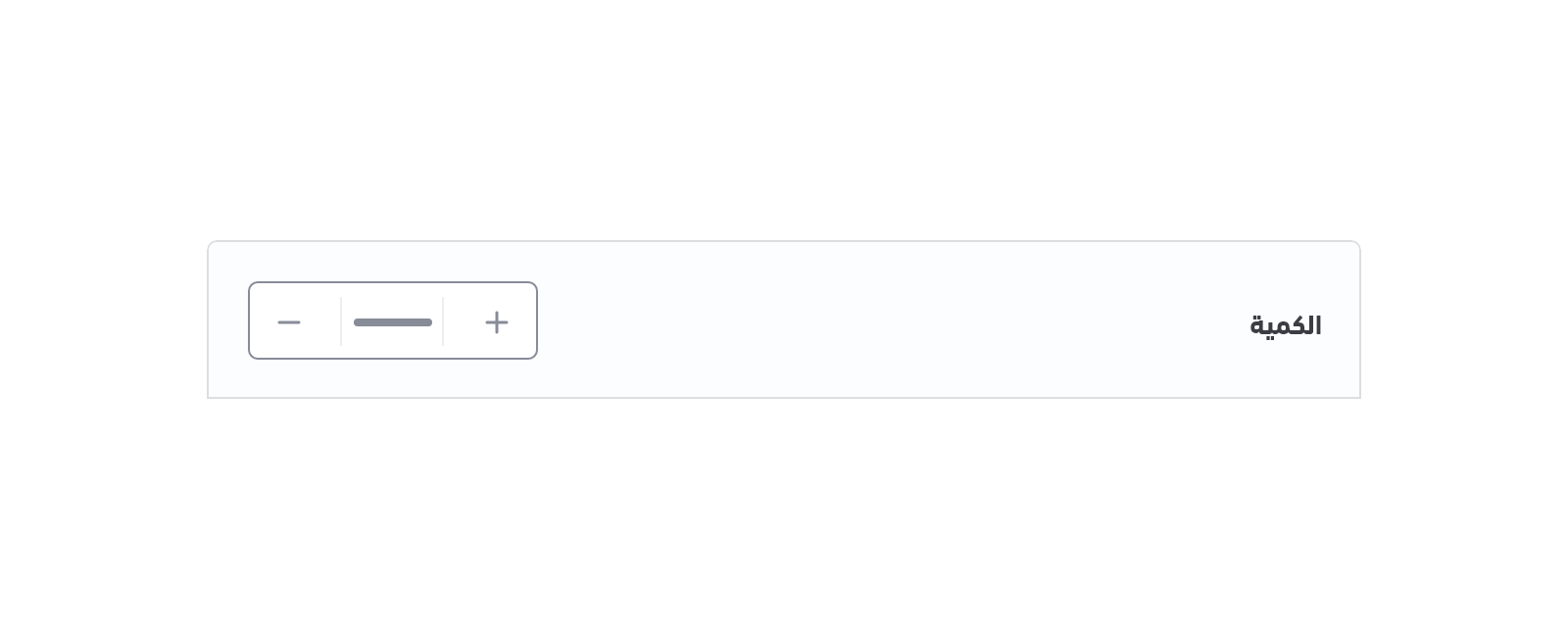
This component gives the user the ability to enter numbers, which can be used in many cases, such as entering the required quantity for a product.
### Example
### Variables
### Usage
The HTML element _input_ is used to show this component with some predefined attributes.
```js
```
## Single Option
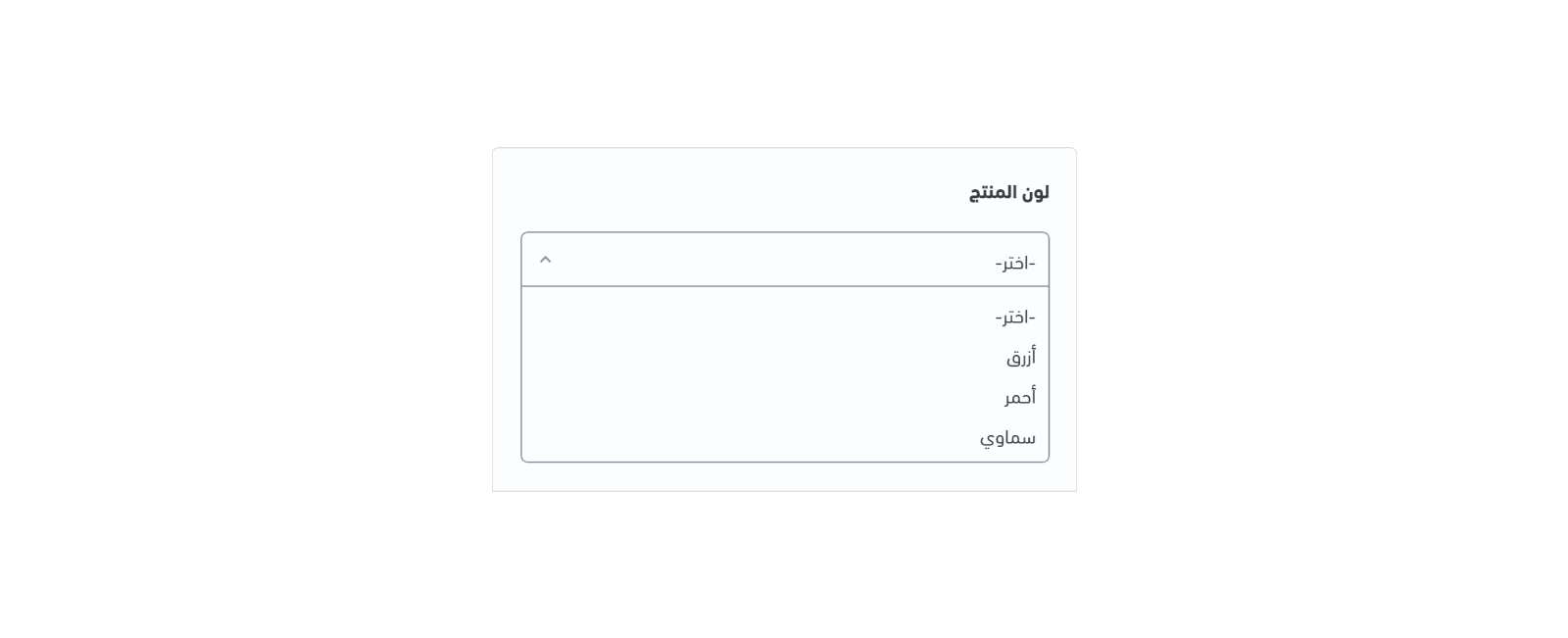
This component shows a list of options where the customer is allowed to select a single option at a time. The list is more compact and can support a longer list of options if needed.
### Example
### Variables
### Usage
The HTML element _select_ is used to show this component with some predefined attributes. Inside this element, a _for-loop_ is used to iterate through the `options` which contains the list of the given options.
```js
```
## Splitter
This component defines a thematic break in a product page. It works similarly to the _hr_ HTML tag in order to create a splitter.
### Example

### Variables
### Usage
The developer has the ability to create a _css class_ to style a break line. As shown below, we can apply this splitter class to any _div_ element.
```js
```
## Text
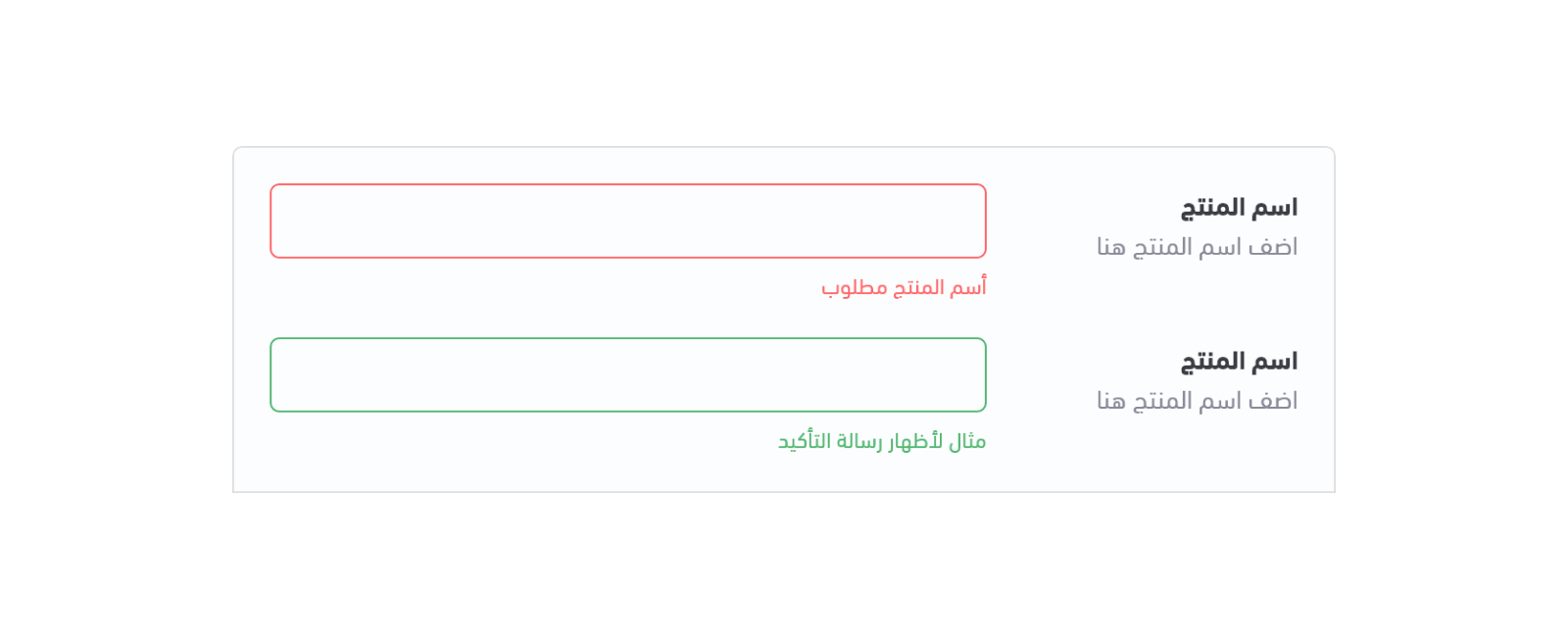
This component allows users to enter text. It can allow a single line and can be used to enter a product name, for example.
### Example
### Variables
### Usage
The HTML element _input_ is used to show this component with some predefined attributes. The `option` object is used to show any detail related to the component, for example, `option.placeholder` to set a default text as a start.
```js
```
## Textarea
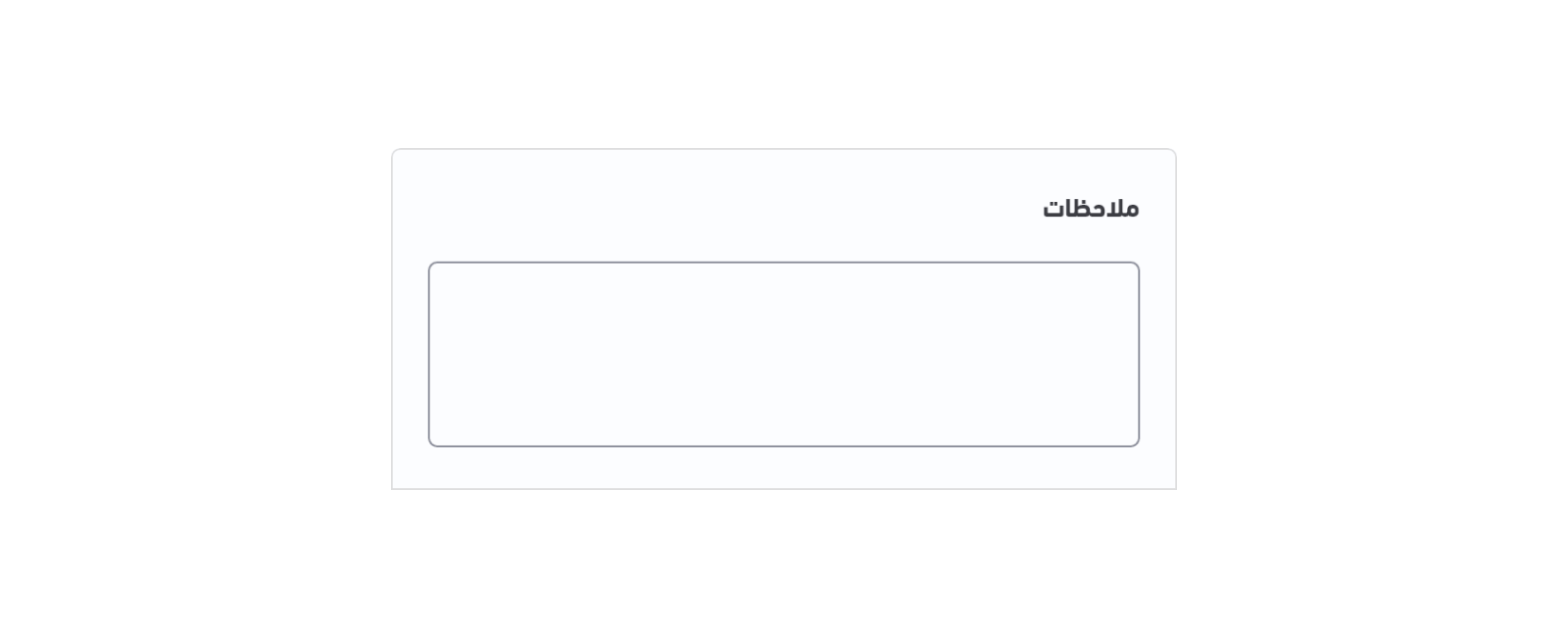
This component allows users to enter multiple line text. It allows the user to enter multiple lines of text and can be used to enter a note about a product, for example.
### Example
### Variables
### Usage
The HTML element _input_ is used to show this component with some predefined attributes. The `option` object is used to show any detail related to the component, for example, `option.placeholder` to set a default text as a start.
```js
```
## Thumbnail
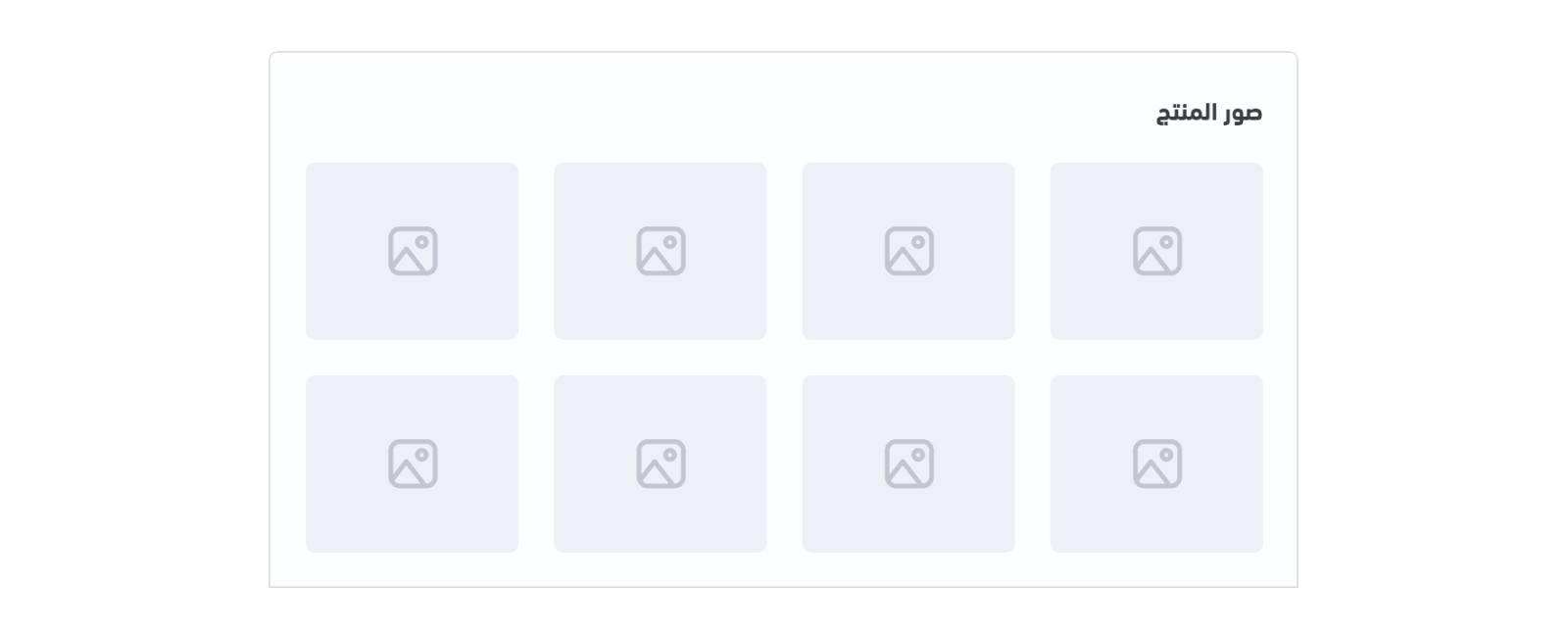
A thumbnail is a small image that represents a larger image when clicked on, and is commonly identified with a border around it. This component can be used to show example images of a product's options.
### Example
### Variables
### Usage
The list of given thumbnails for a product's options can be retrieved and displayed using the _for-loop_ statement through the `option object. This list of options includes details such as `detail.image` to display the thumbnail's image. This component may use the _html input radio_ element in order to restrict the user to selecting one image, option, at a time.
```js
{% for detail_index, detail in option.details %}
{{ detail.name }}
{% if detail.is_out %}
Out of stock
{% endif %}
{% endfor %}
```
## Time
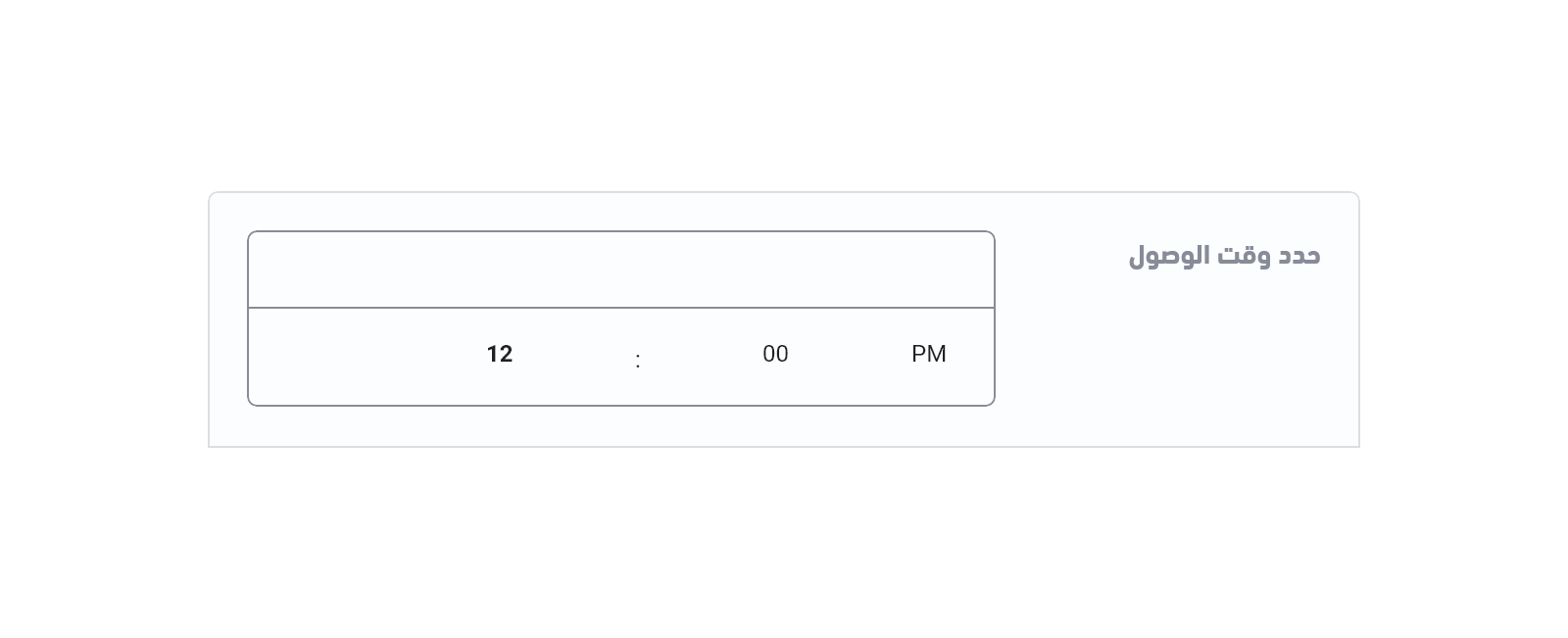
This component works as a time picker to allow customers to enter a specific time. It can be used as an input field for the delivery time, as an example.
### Example
### Variables
### Usage
The HTML element _input_ is used to show this component with some predefined attributes along with the `option` object.
```js
```
 }} "{{ detail.name }}")