# Webhooks

Salla's Webhooks allows you to easily set up fully automated notifications, as you get to be notified whenever your App receives payload/data from a merchant store. They are triggered when:
- A merchant installs an App
- An order or product is created in the merchant store.
- A coupon is applied, and much more
You can then use the information sent via webhooks to trigger other actions or integrate with external systems. This makes it simple to customize your notifications and keep track of all changes occurring within your Salla account.
## Security Implementation
**Salla** secures webhook communication using headers. When an event occurs, Salla will send these headers and the relevant details to the specified App along with the token or signature verifies that the request is from Salla. Alternately, you can create a customized key and value to use with Salla's payload.
The following image illustrates how the Webhook communication is conducted in a secured vs insecured environment.
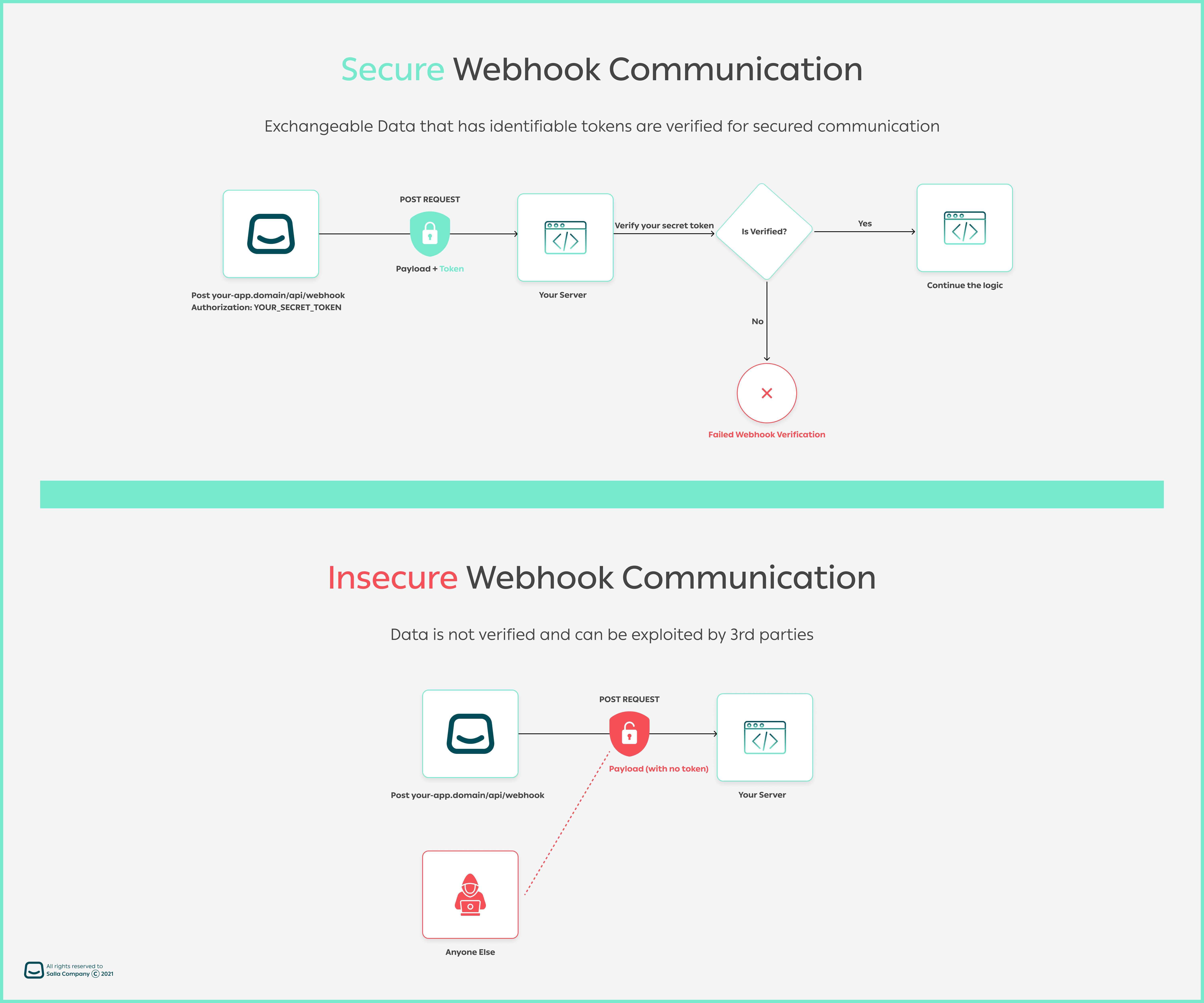
You can easily authenticate webhook calls using Salla's built-in options, which are **Signature**, and **Token**. The strategies are described in depth in the section that follows.
:::warning
Using Salla's tokens or signatures while `POST`ing data, allows you to authenticate the sender. Otherwise, deny any other suspicious requests.
:::
### Regsiter Webhooks
There are noticeable, interchangeable parameters in the latest Salla API update. Let us take a look at the structures in both [versions](https://docs.salla.dev/doc-421126) as we get responses from a webhook
When sending the parameters using any endpoints from Salla, there are common properties they share, although having different structure. For more on the hows to register a webhook, check either the [previous section](#security-implementation) or this [API](https://docs.salla.dev/api-5394134).
| Parameter | Type | Description |
| ------------- | ------------- | -------------------------------------------------------------------------------------------------------------------------------------------------------------------------------------------------------------------------------------------------------------------------------------------------------------------------------------------------------------------------------------------- |
| name | string | Webhook Name |
| event | string | Webhook Event [From Event List](https://docs.salla.dev/doc-421119#list-of-salla-store-events) |
| version | number | [Webhook Version](https://docs.salla.dev/doc-421126); of the webhook; either valued as `1` or `2`. |
| rule | string | Operations, expressions and conditions to your webhook. For example, you may use `=`,`!=`,`AND`,`OR` etc in such a menner: `payment_method = YOUR_PAYMENT_METHOD` or in combination `payment_method = mada OR price < 50`. That adds more capbility to filter the response based on conditions |
| url | string | Webhook URL where you will receive the webhook calls |
| headers | array[object] | Webhook headers containing security info |
| headers.key | string | Any haeder key, which its value is sent in the post request to the webhook URL |
| headers.value | string | The value sent to the webhook; for example: `cf-ray: 669af54ecf55dfcb-FRA` | | security_strategy | string | Adapted security strategy. Value can either be `signature`, `token`, or `none` |
| secret | string | Secret Token value |
| version | string | [Webhook Version](doc-421126); either valued as `1` or `2`. |
| rule | string | Operations, expressions and conditions to your webhook. For example, you may use `=`,`!=`,`AND`,`OR` etc in such a menner: `payment_method = YOUR_PAYMENT_METHOD` or in combination `payment_method = mada OR price < 50`. That adds more capbility to filter the response based on conditions. Read more [here](https://docs.salla.dev/doc-421120) |
:::warning
Salla currently uses [API Version `2`](https://docs.salla.dev/doc-421126). By default, all new registered webhooks will be set as version `2`. If you want to use version `1` of the webhook, pass that in your request parameter. Additionally, Salla will assign the Security Strategy to `Signature` by default in case you registered a webhook with no security strategy defined in your body request.
:::
### Security Strategies
For all created [Partner Apps](https://salla.partners/apps), Salla will assign the `signature` security strategy by default, as Salla will hash payloads via an auto-generated, reproducable signature token. It will also append two headers to the webhook payload; the security startegy used as in `X-Salla-Security-Strategy` which is in this context `Signature` , and a hashed token signature as in `4d7dac8e688eca1c1xxxx`
| Security Startegy | Header | Token Suffix |
| ----------------- | ------------------------- | ----------------- |
| Signature | X-Salla-Security-Strategy | X-Salla-Signature |

### Register Endpoint
Following is the expected request payload for the `Signature` security strategy:
### Verify Webhooks Using Signature
Once merchants install the app in their stores, Salla uses the Siganture secret startegy (or the default one on app settings) to automatically assign webhook events.
A value for Secret must be given when establishing the webhook in order to allow webhook verification. The request body's 64 character SHA256 hash, which you may find via your partner's dashboard, will then be appended to the X-salla-signature header (e.g. x-salla-signature: `ac3ea83628cccf2e98afc34223e4eeb5b41800b77737938aeed4e109f0a0xxxx`).
You can also create your own SHA256 hash of the request body using the Secret value to check the signature. Then, using a timing-safe equality function, compare the header value to your own calculated value. Here is an example of how you might accomplish this using Node.js.
```js
const express = require("express");
const crypto = require("crypto");
const app = express();
// Base Endpoint URL: https://api.salla.dev/admin/v2
app.post('/webhooks/subscribe', (req, res) => {
const requestHMAC = req.header("x-salla-signature");
const secret = process.env.WEBHOOK_SECRET;
const computedHMAC = crypto.createHmac('sha256', secret).update(JSON.stringify(req.body)).digest('hex');
const signatureMatches = requestHMAC === computedHMAC;
if (!signatureMatches) {
res.sendStatus(401);
}
// do stuff
res.sendStatus(200);
```
Another demonstration can be done using the PHP language to verify a webhook header when receiving a payload. Once the webhook is received, your server can verify it from Salla in the following way:
```php
As of token, [Salla](https://salla.partners) will reserve an auto-generated, reproducable token that you can use to confirm received payloads. Two headers will be appended to your webhook response; the security startegy adapted, as in `X-Salla-Security-Strategy` which is in this context `Token`, and the token value itself, as in `Authorization`.
| Security Startegy | Header | Token Suffix |
| ----------------- | ------------------------- | ------------ |
| Token | X-Salla-Security-Strategy | Authorizaion |

### Register Endpoint
Following is the expected request payload for the `Token` security strategy:
### Verify Webhooks Using Token
Once Merchants install the app in their stores, Salla assigns webhook events using the Token secret startegy. By adding a token to each event's x-salla-signature header, Salla signs the webhook events. This enables you to confirm that Salla supplied the events, and not someone else.
A value for Secret must be provided when establishing the webhook in order to allow webhook verification. The 32 character SHA256 hash of the request body, which you may acquire via your partner's dashboard, will then be appended to the X-salla-signature header (e.g. x-salla-signature: `9b8f5e05c7d107d49bd443bf2428xxxx`).
Use the Secret value to generate your own SHA256 hash of the request body to validate the token. Then, employ a timing-safe equality function to compare the value of the header with the value you computed yourself. Here is an example of how you might accomplish this using Node.js.
```js
const express = require("express");
const crypto = require("crypto");
const app = express();
// Base Endpoint URL: https://api.salla.dev/admin/v2
app.post('/webhooks/subscribe', (req, res) => {
const requestHMAC = req.header("x-salla-signature");
const secret = process.env.WEBHOOK_SECRET;
const computedHMAC = crypto.createHmac('sha256', secret).update(JSON.stringify(req.body)).digest('hex');
const signatureMatches = requestHMAC === computedHMAC;
if (!signatureMatches) {
res.sendStatus(401);
}
// do stuff
res.sendStatus(200);
```
Another demonstration can be done using the PHP language to verify a webhook header when receiving a payload. Once the webhook is received, your server can verify it from Salla in the following way:
```php
## Timeout
The timeout indicates the amount of time the client must establish the connection. Salla will wait for the HTTP response and the initiation of the connection for around 30 seconds.
:::caution
If Salla did not get a successful response from the webhook endpoint, it would trigger the webhook event three times during the event. The interval between each trial will be around five minutes. In the case of receiving a successful response, no further requests will be sent.
:::
## List of Salla Store Events
### Order
| Name | Description |
| ----------------------------------------------- | --------------------------------------------------------------------------- |
| [`order.created`](https://docs.salla.dev/doc-433804) | This is triggered when an order has been created. |
| [`order.updated`](https://docs.salla.dev/doc-433804) | This is triggered when an order has been updated. |
| [`order.status.updated`](https://docs.salla.dev/doc-433804) | This is triggered when an order status has been updated. |
| [`order.cancelled`](https://docs.salla.dev/doc-433804) | This is triggered when an order has been cancelled. |
| [`order.refunded`](https://docs.salla.dev/doc-433804) | This is triggered when an order has been refunded. |
| [`order.deleted`](https://docs.salla.dev/doc-433804) | This is triggered when an order has been deleted. |
| [`order.products.updated`](https://docs.salla.dev/doc-433804) | This is triggered when an order products have been updated. |
| [`order.payment.updated`](https://docs.salla.dev/doc-433804) | This is triggered when an order payment has been updated. |
| [`order.coupon.updated`](https://docs.salla.dev/doc-433804) | This is triggered when an order coupon has been updated. |
| [`order.total.price.updated`](https://docs.salla.dev/doc-433804) | This is triggered when an order total price has been updated. |
| [`order.shipment.creating`](https://docs.salla.dev/doc-433804) | This is triggered when an order shipment is being created. |
| [`order.shipment.created`](https://docs.salla.dev/doc-433804) | This is triggered when an order shipment return has been created. |
| [`order.shipment.cancelled`](https://docs.salla.dev/doc-433804) | This is triggered when an order shipment return has been cancelled. |
| [`order.shipment.return.creating`](https://docs.salla.dev/doc-433804) | This is triggered when an order shipment return is being created. |
| [`order.shipment.return.created`](https://docs.salla.dev/doc-433804) | This is triggered when an order shipment return has been created. |
| [`order.shipment.return.cancelled`](https://docs.salla.dev/doc-433804) | This is triggered when an order shipment return has been cancelled. |
| [`order.shipping.address.updated`](https://docs.salla.dev/doc-433804) | This is triggered when an order shipment shipping address has been updated. |
### Product
| Name | Description |
| ------------------------------------ | ------------------------------------------------------------------ |
| [`product.created`](https://docs.salla.dev/doc-433805) | This event is triggered when a product has been created. |
| [~~`product.updated`~~](https://docs.salla.dev/doc-433805#product-webhook-events-model) | ~~This event is triggered when a product has been updated.~~ |
| [`product.deleted`](https://docs.salla.dev/doc-433805) | This event is triggered when a product has been deleted. |
| [~~`product.available`~~](https://docs.salla.dev/doc-433805) | ~~This event is triggered when a product's stock has been available.~~ |
| [`product.quantity.low`](https://docs.salla.dev/doc-433805#product-webhook-events-model) | This event is triggered when a product's stock is of low quantity. |
| [`product.price.updated`](https://docs.salla.dev/433805m0#product-price-updated-webhook-events-model) | This event is triggered when a product price has been updated. |
| [`product.status.updated`](https://docs.salla.dev/433805m0#product-status-updated-webhook-events-model) | This event is triggered when a product status has been changed. |
| [`product.image.updated`](https://docs.salla.dev/433805m0#product-image-updated-webhook-event-model) | This event is triggered when a product image has been updated. |
| [`product.category.updated`](https://docs.salla.dev/433805m0#product-category-updated-webhook-events-model) | This event is triggered when a product category has been updated. |
| [`product.brand.updated`](https://docs.salla.dev/433805m0#product-brand-updated-webhook-events-model) | This event is triggered when a product brand has been updated. |
| [`product.tags.updated`](https://docs.salla.dev/433805m0#product-tags-updated-webhook-events-model) | This event is triggered when a product tags have been updated. |
### Shipping Companies
| Name | Description |
| ---------------------------------------- | -------------------------------------------------------------------------------------- |
| [`shipping.zone.created`](https://docs.salla.dev/doc-433806) | This is triggered when a shipping zone has been created for a custom shipping company. |
| [`shipping.zone.updated`](https://docs.salla.dev/doc-433806) | This is triggered when a shipping zone has been updated for a custom shipping company. |
| [`shipping.company.created`](https://docs.salla.dev/doc-433806) | This is triggered when a custom shipping company has been created. |
| [`shipping.company.updated`](https://docs.salla.dev/doc-433806) | This is triggered when a custom shipping company has been updated. |
| [`shipping.company.deleted`](https://docs.salla.dev/doc-433806) | This is triggered when a custom shipping company has been deleted. |
### Shipments
| Name | Description |
| ---------------------------------- | -------------------------------------------------------------------------------------- |
| [`shipment.creating`](https://docs.salla.dev/doc-433807) | This is triggered when a shipment is assigned to a shipping company. |
| [`shipment.created`](https://docs.salla.dev/doc-433807) | This is triggered when shipment is updated by the shipping company for the first time. |
| [`shipment.cancelled`](https://docs.salla.dev/doc-433807) | This is triggered when a shipment is cancelled. |
| [`shipment.updated`](https://docs.salla.dev/doc-433807) | This is triggered when a shipment is updated after creation. |
### Customer
| Name | Description |
| ------------------------------------ | ------------------------------------------------------------------------------- |
| [`customer.created`](https://docs.salla.dev/doc-433808) | This event is triggered when a customer has been created. |
| [`customer.updated`](https://docs.salla.dev/doc-433808) | This event is triggered when a customer has been updated. |
| [`customer.login`](https://docs.salla.dev/doc-433808) | This event is triggered when a customer has logged in to their account. |
| [`customer.otp.request`](https://docs.salla.dev/doc-433808) | This event is triggered when a customer's One-Time Password has been requested. |
### Category
| Name | Description |
| -------------------------------- | --------------------------------------------------------- |
| [`category.created`](https://docs.salla.dev/doc-433809) | This event is triggered when a category has been created. |
| [`category.updated`](https://docs.salla.dev/doc-433809) | This event is triggered when a category has been updated. |
### Brand
| Name | Description |
| ----------------------------- | ------------------------------------------------------ |
| [`brand.created`](https://docs.salla.dev/doc-433810) | This event is triggered when a brand has been created. |
| [`brand.updated`](https://docs.salla.dev/doc-433810) | This event is triggered when a brand has been updated. |
| [`brand.deleted`](https://docs.salla.dev/doc-433810) | This event is triggered when a brand has been deleted. |
### Store
| Name | Description |
| --------------------------------------- | ---------------------------------------------------------------------------------- |
| [`store.branch.created`](https://docs.salla.dev/doc-433811) | This event is triggered when a store branch has been created. |
| [`store.branch.updated`](https://docs.salla.dev/doc-433811) | This event is triggered when a store branch has been updated. |
| [`store.branch.setDefault`](https://docs.salla.dev/doc-433811) | This event is triggered when a store branch has been set to be the default branch. |
| [`store.branch.activated`](https://docs.salla.dev/doc-433811) | This event is triggered when a store branch has been activated. |
| [`store.branch.deleted`](https://docs.salla.dev/doc-433811) | This event is triggered when a store branch has been deleted. |
| [`storetax.created`](https://docs.salla.dev/doc-433811) | This event is triggered when a store tax has been created. |
### Cart
| Name | Description |
| ------------------------------ | ---------------------------------------------------------------- |
| [`abandoned.cart`](https://docs.salla.dev/doc-433812) | This event is triggered when an abandoned cart has been created. |
| [`coupon.applied`](https://docs.salla.dev/doc-433812) | This event is triggered when a coupon has been applied. |
### Invoice
| Name | Description |
| ------------------------------- | ---------------------------------------------------------------------------------- |
| [`invoice.created`](https://docs.salla.dev/doc-433813) | This event is triggered when the order status is either `completed` or `restored`. |
### Special Offer
| Name | Description |
| ------------------------------------ | -------------------------------------------------------------- |
| [`specialoffer.created`](https://docs.salla.dev/doc-433814) | This event is triggered when a special offer has been created. |
| [`specialoffer.updated`](https://docs.salla.dev/doc-433814) | This event is triggered when a special offer has been updated. |
### Miscellaneous
| Name | Description |
| ---------------------------- | --------------------------------------------------------------- |
| [`review.added`](https://docs.salla.dev/doc-433815) | This event is triggered when a product's review has been added. |
## Troubleshooting
This section will go through why webhooks fail and what are the different scenarios you can do to troubleshoot such issues.
## Why Webhook Fails
Abnormally, your webhook might not return any results after receiving a payload, and therefore Salla considers that as a failure request/response.
There are two possible explanations for why you are not receiving webhooks for your transactions:
A - Because the webhook URL is not specified or the transaction is not in a final state, Salla is not delivering data to your hook URL (success or failed), or
B - The requests are not being accepted by your webhook server.
The initial step in troubleshooting, regardless of the issue, would be to test for the situations.
## Set Up Troubleshooting Environment
To troubleshoot for Salla webhooks, we will construct a workable URL from https://webhook.site/. This will act as our server, listening for Salla webhooks.
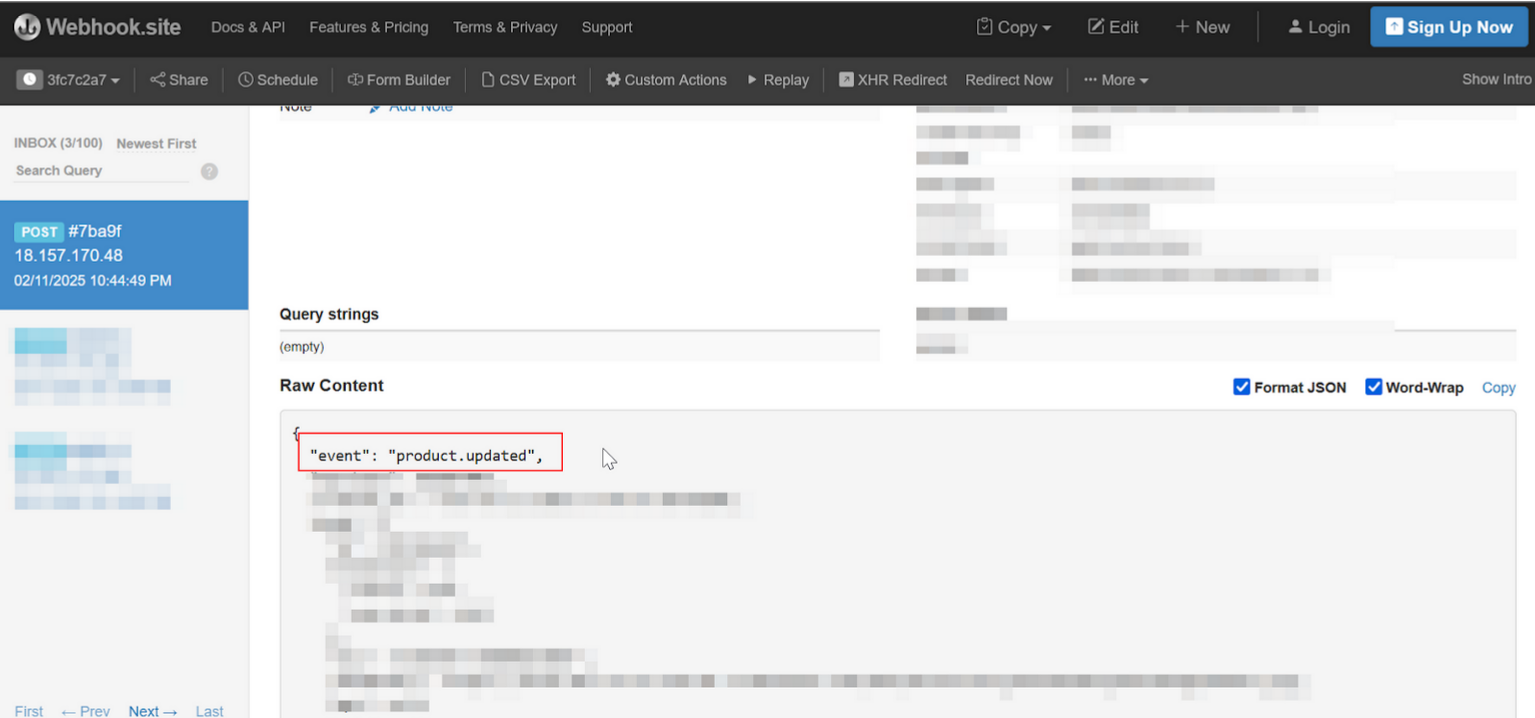
When an event occurs, the webhook data should be shown on the URL. This confirms that webhooks are being delivered to the developer's server.
Please follow the 4 parts instructions below to carry out this test:
### Part 1 | Set Up the Webhook Settings in Partners Portal
- Start with logging in to your [Salla Partners](https://portal.salla.partners/) account.
- Then, go to the “My Apps” menu item on the left side of the page
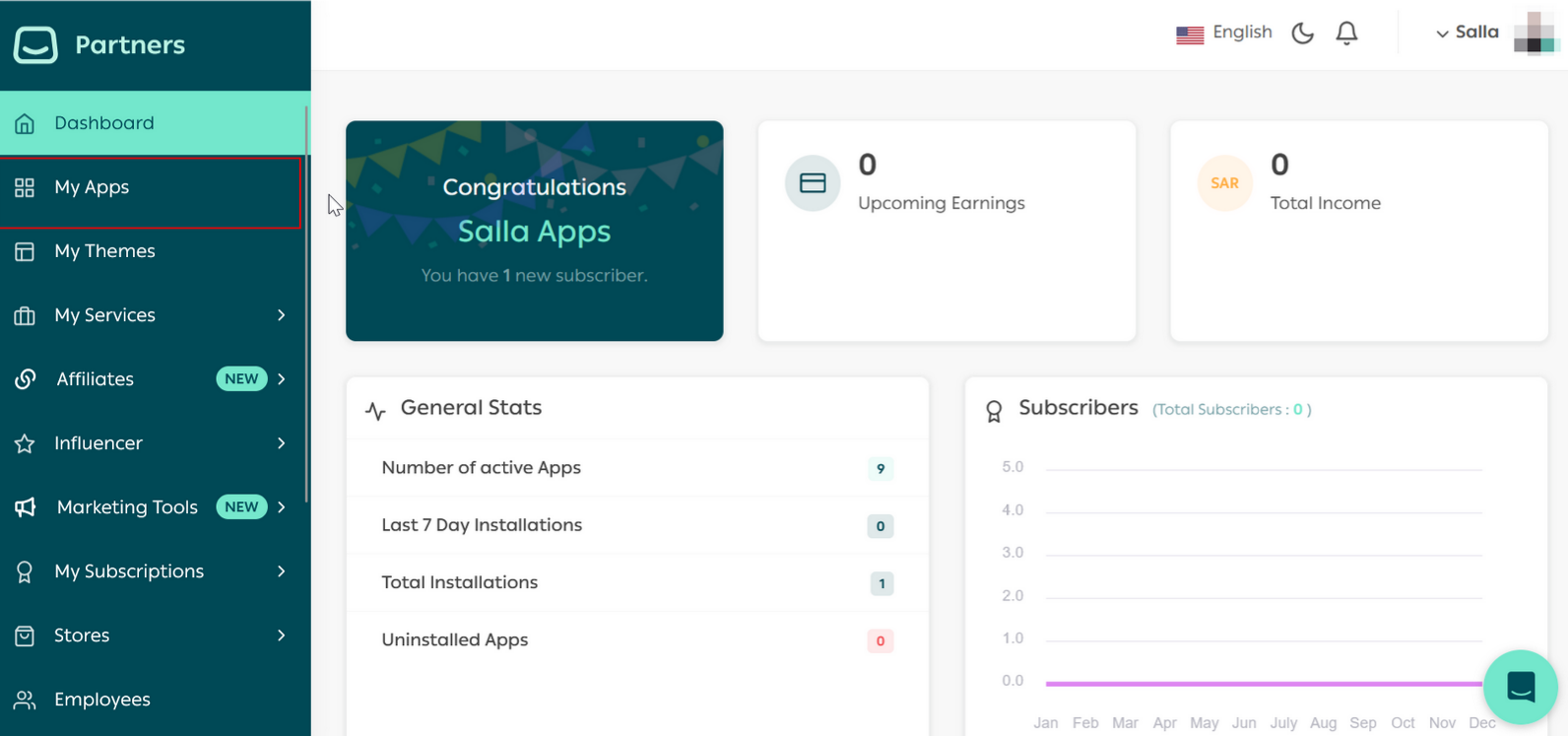
- You will be redirected to the Apps. Choose the App you want to test the webhook with.
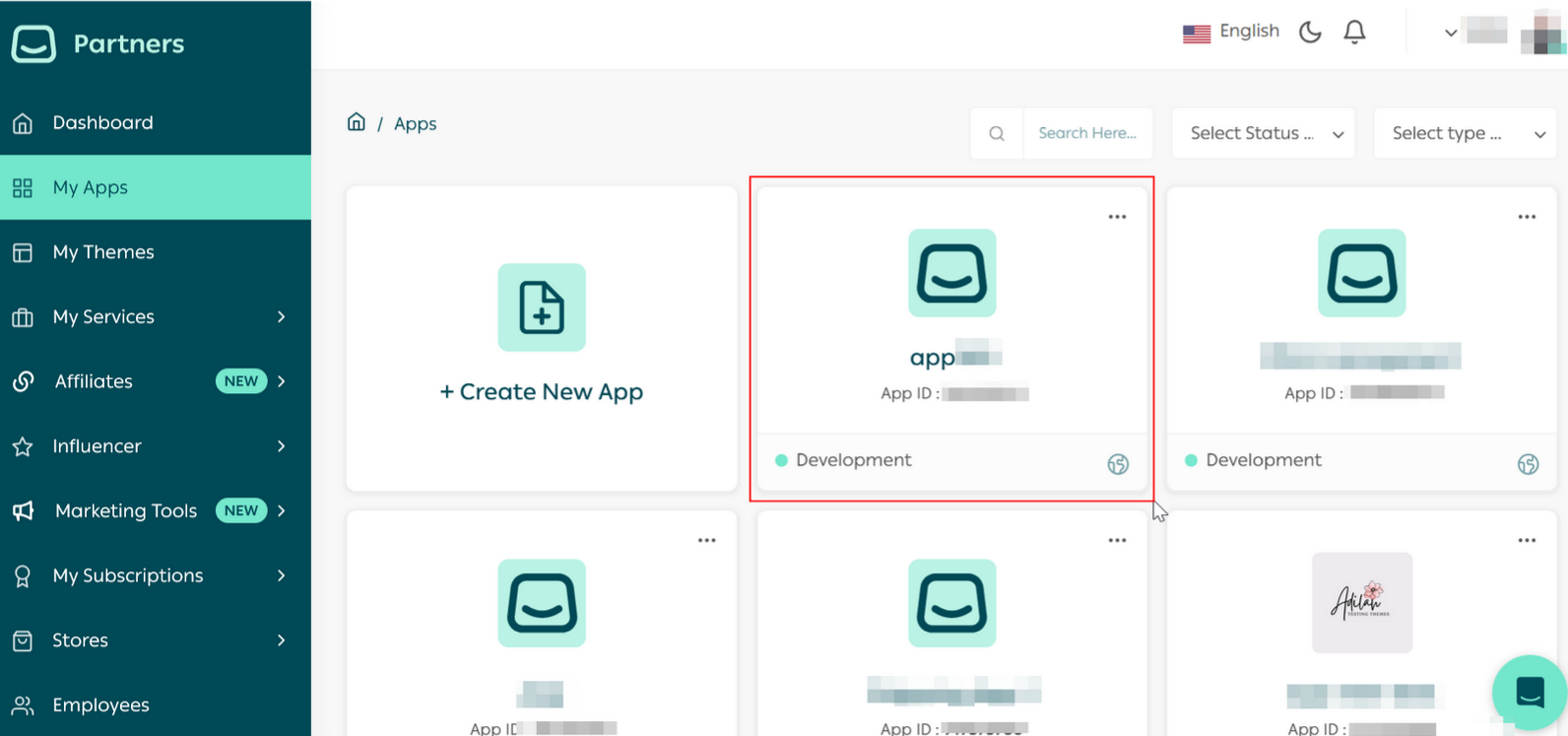
- This will redirect you to the App details page.
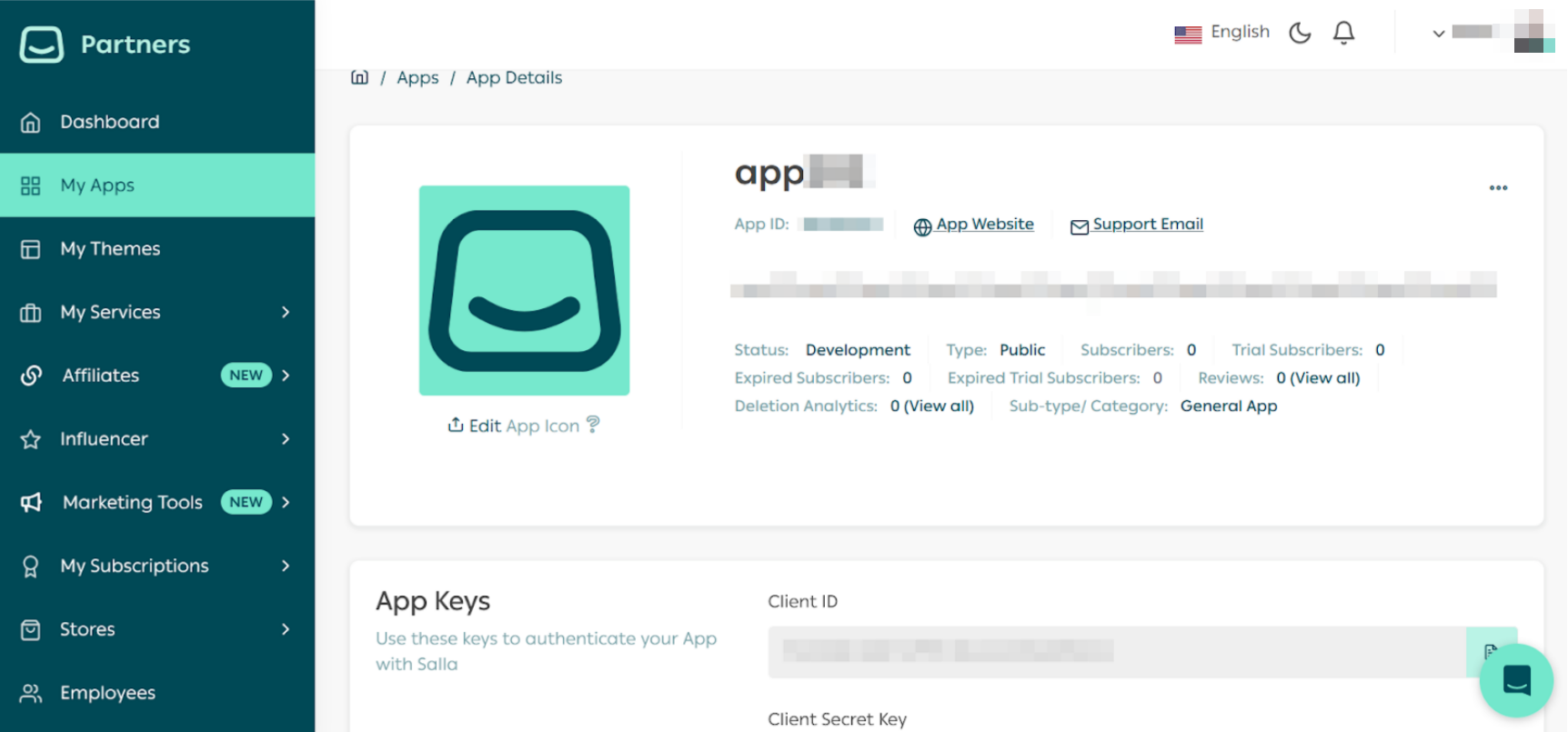
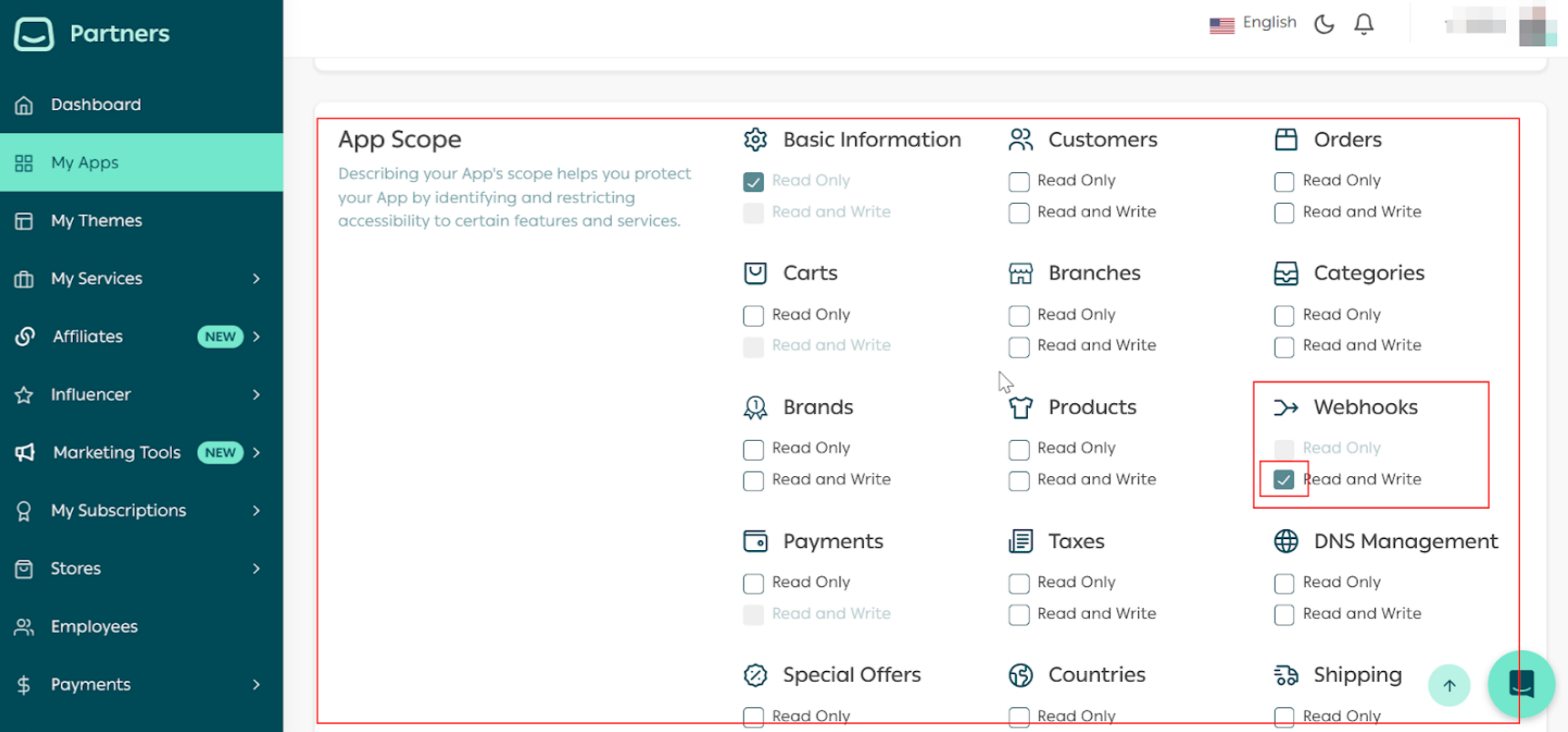
- Scroll down to the App Scope section and make sure to tick the "Read and Write" option for Webhooks scope.
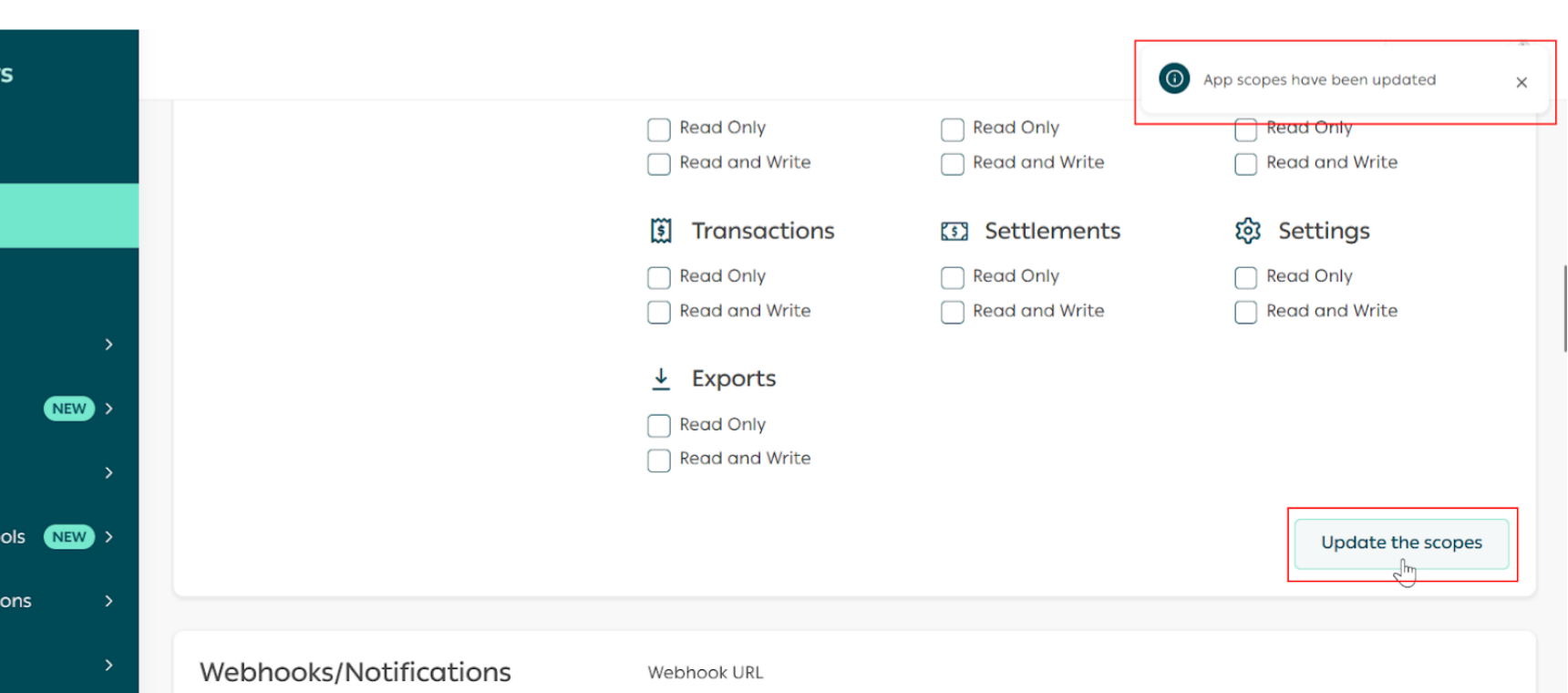
- Then click on the “Update Scope” button.
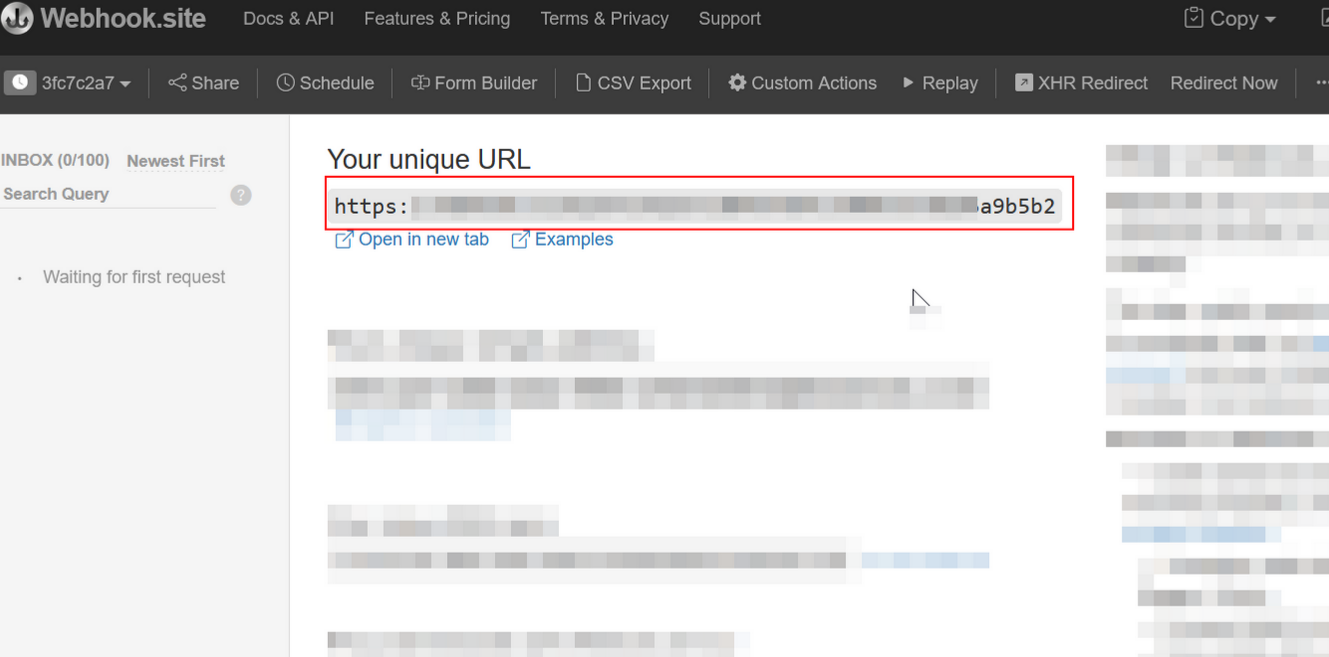
- After that, go to [webhook.site](https://webhook.site/#!/view/3fc7c2a7-2846-4d4c-9066-a75b56a9b5b2) and copy the auto-generated Webhook URL
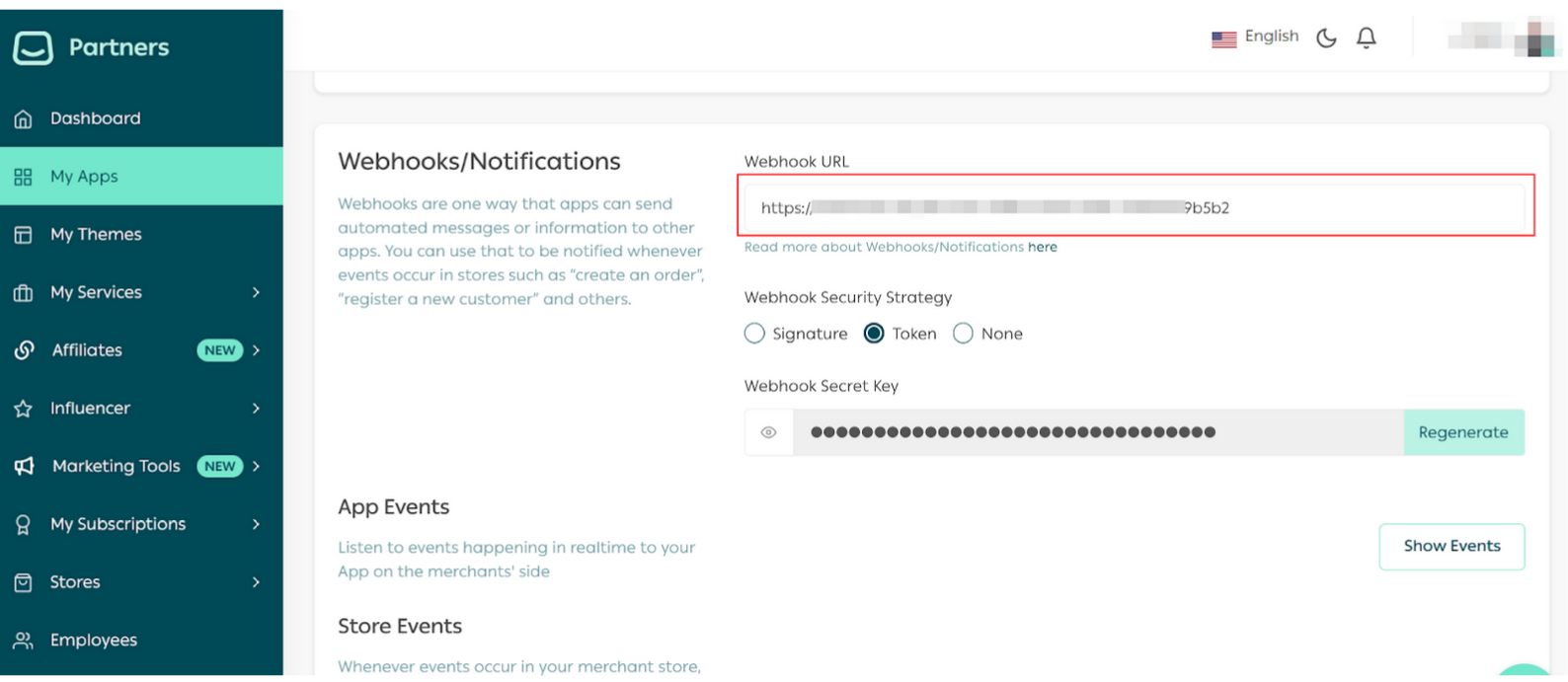
- Back in the Partners Portal, scroll down to the "≥Webhooks/Notification" section and add the Webhook URL. Make sure to click on the outer side of the input box to save the changes.
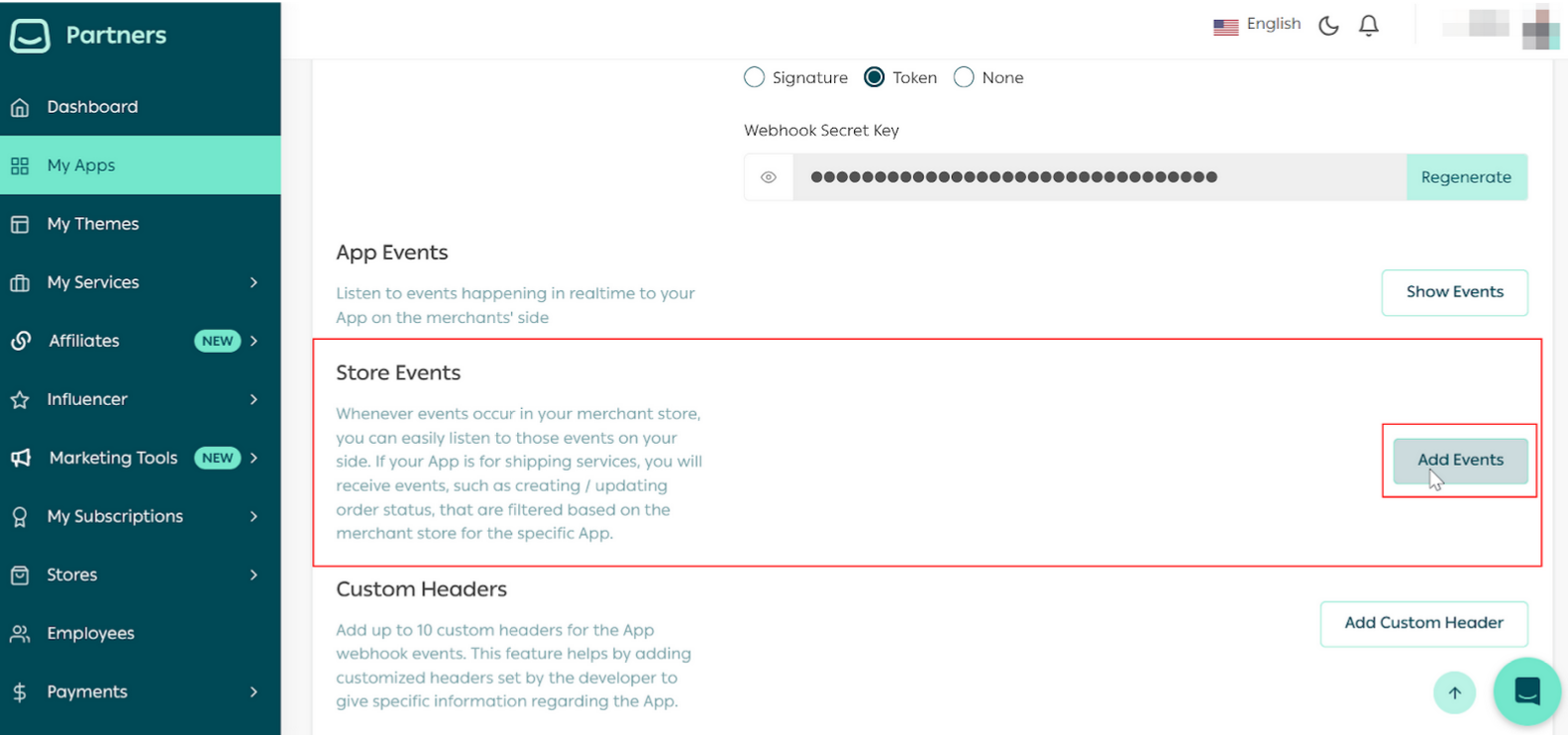
- Next, in the same section, click on the “Add Events” button in the [Store Events](https://docs.salla.dev/907544f0) subsection.
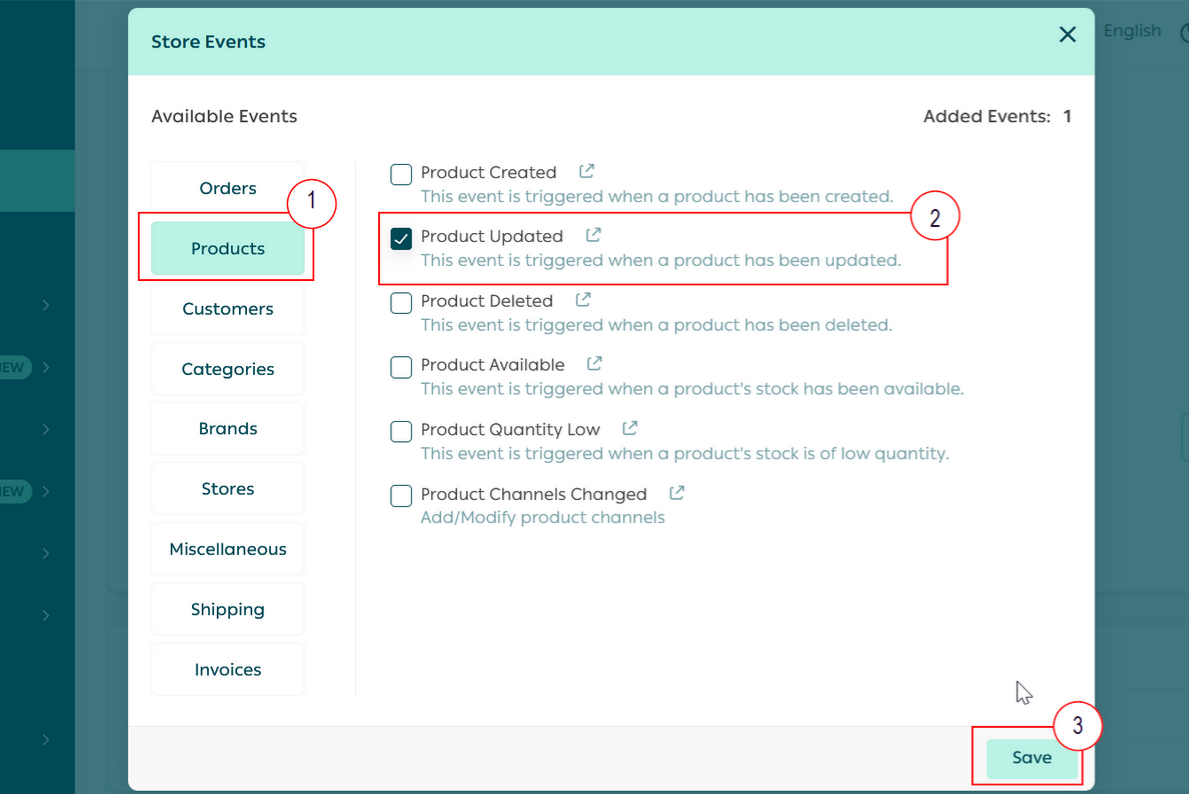
- On the “Product” tab, select the events you want to test, in this example we will select the “Product Updated" event and click the “save” button.
### Part 2 | Install the App in the demo store
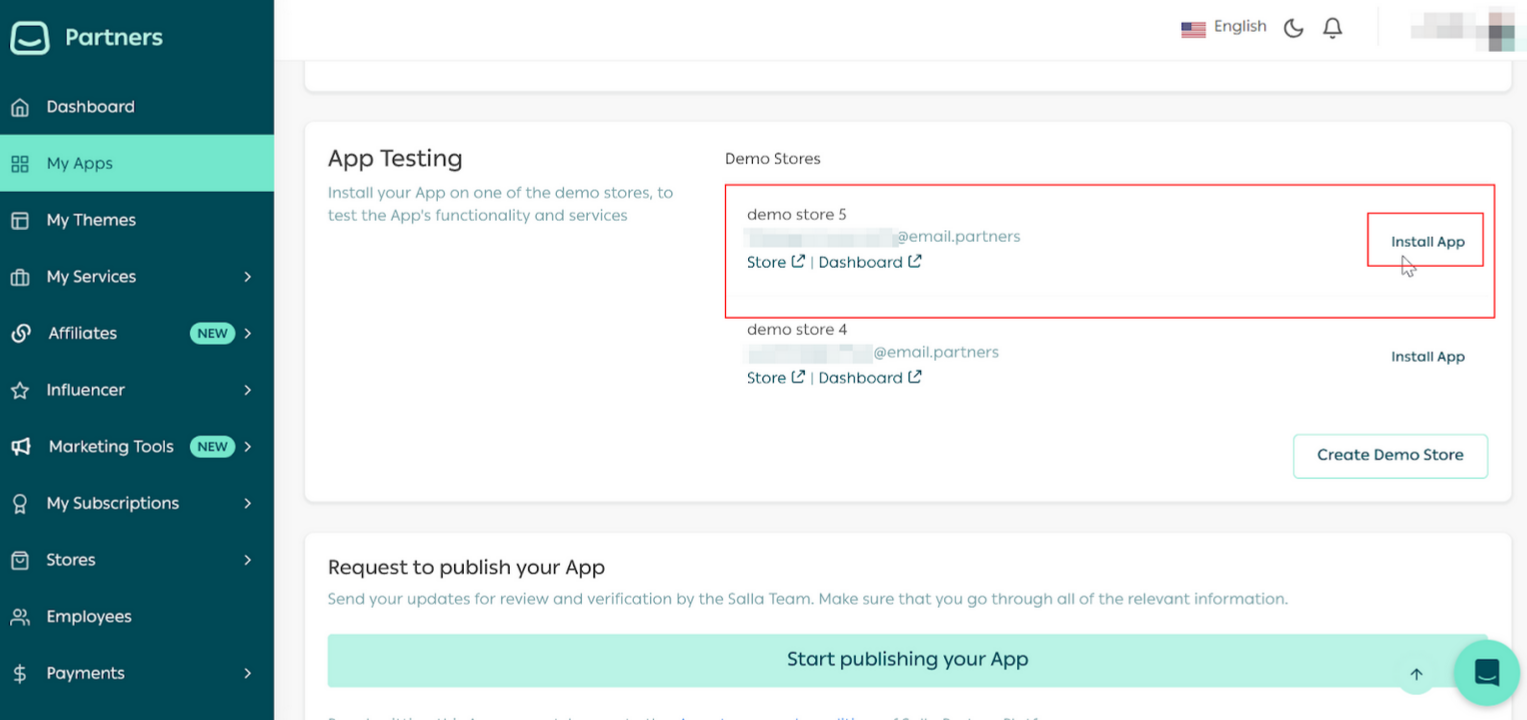
- On the App details page, scroll down to the App testing section and click on the “Install App”
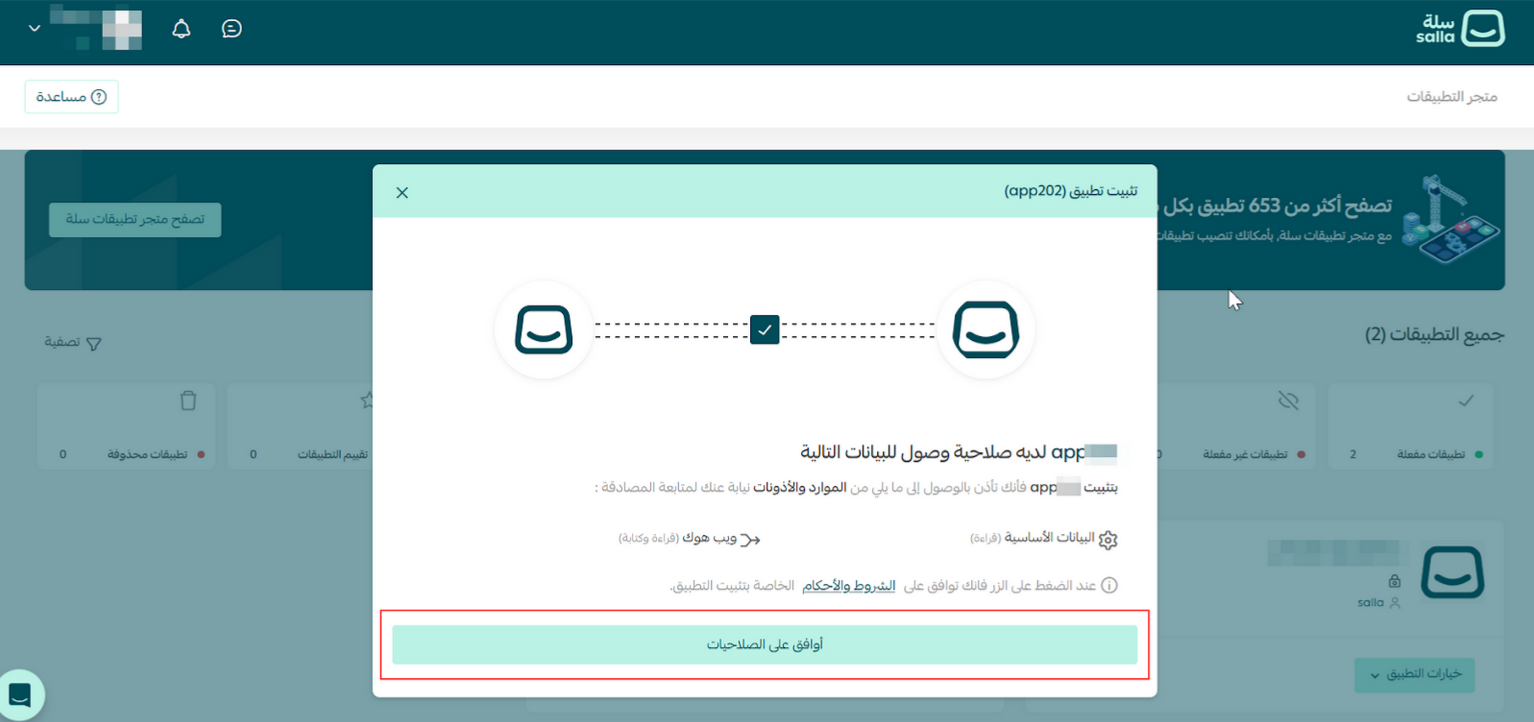
- You will be redirected to the store dashboard page where you can authorize App accessibility.
:::info[Note]
If the app is already installed on the demo store, you can reinstall it by first uninstalling it. To do this, navigate to the "Webhooks/Notifications" section and go to Dashboard > Menu Bar “More” > Installed Apps.

Then, choose your app from the list of installed apps and uninstall it.

:::
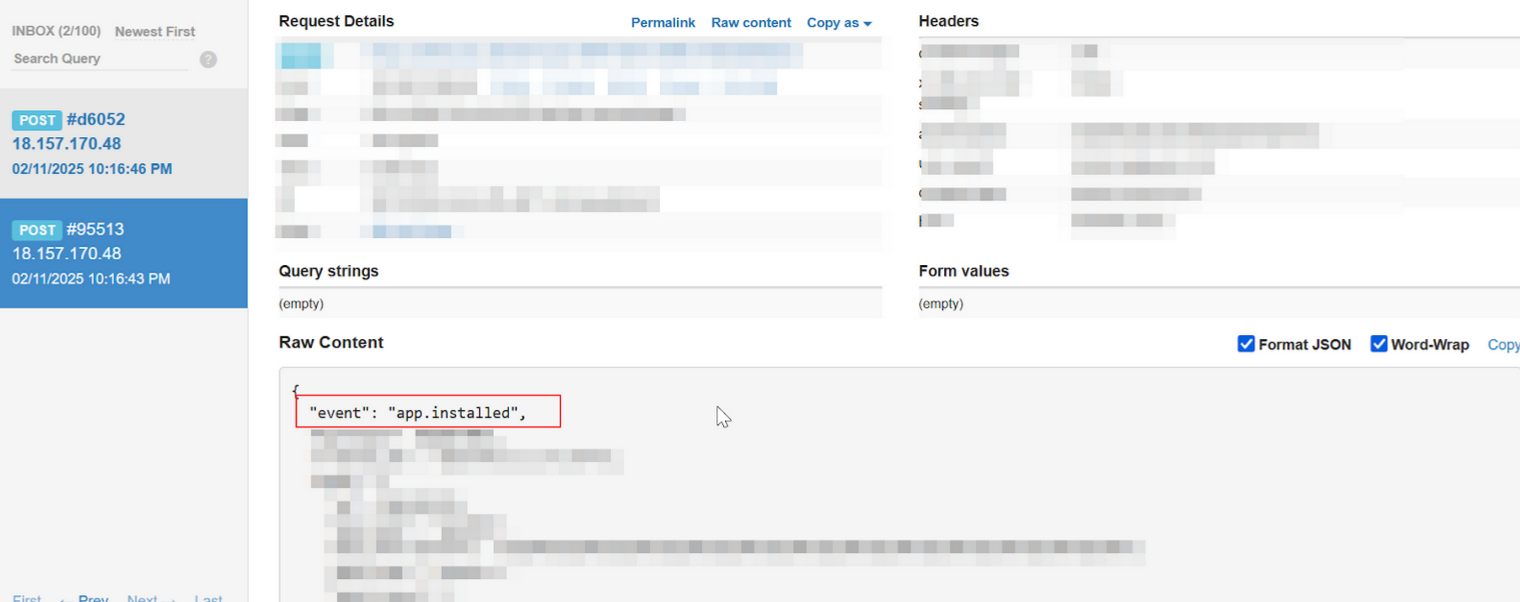
- Go back to [webhook.site](https://webhook.site) to check if you received any events from Salla after installing the app. You should see [App Events](https://docs.salla.dev/421413m0?nav=01HNA8M216X4HFNGWM9TWSTCKQ) displayed as shown below.
### Part 3 | Test the Webhook using the Store dashboard
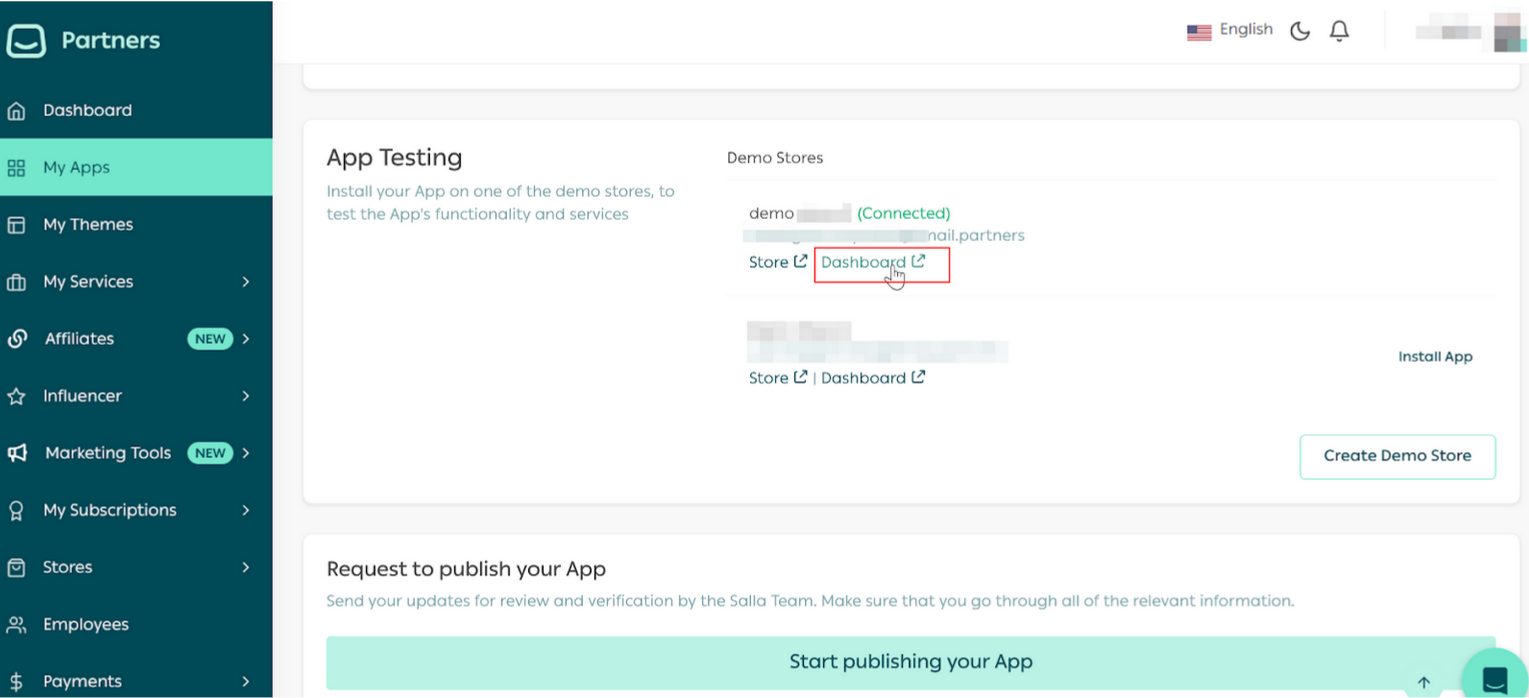
- On the App details page, scroll down to the "App Testing" section and click on the Store dashboard where the App was previously installed.
:::info[Note]
In case you were asked for email and password, use the auto-generated partners email given in the App testing section and the password can be reset from the Partners side menu bar “Stores” > Demo Stores. More details in the Demo Stores [article](https://salla.dev/blog/how-to-test-your-app-using-salla-demo-stores/).
:::
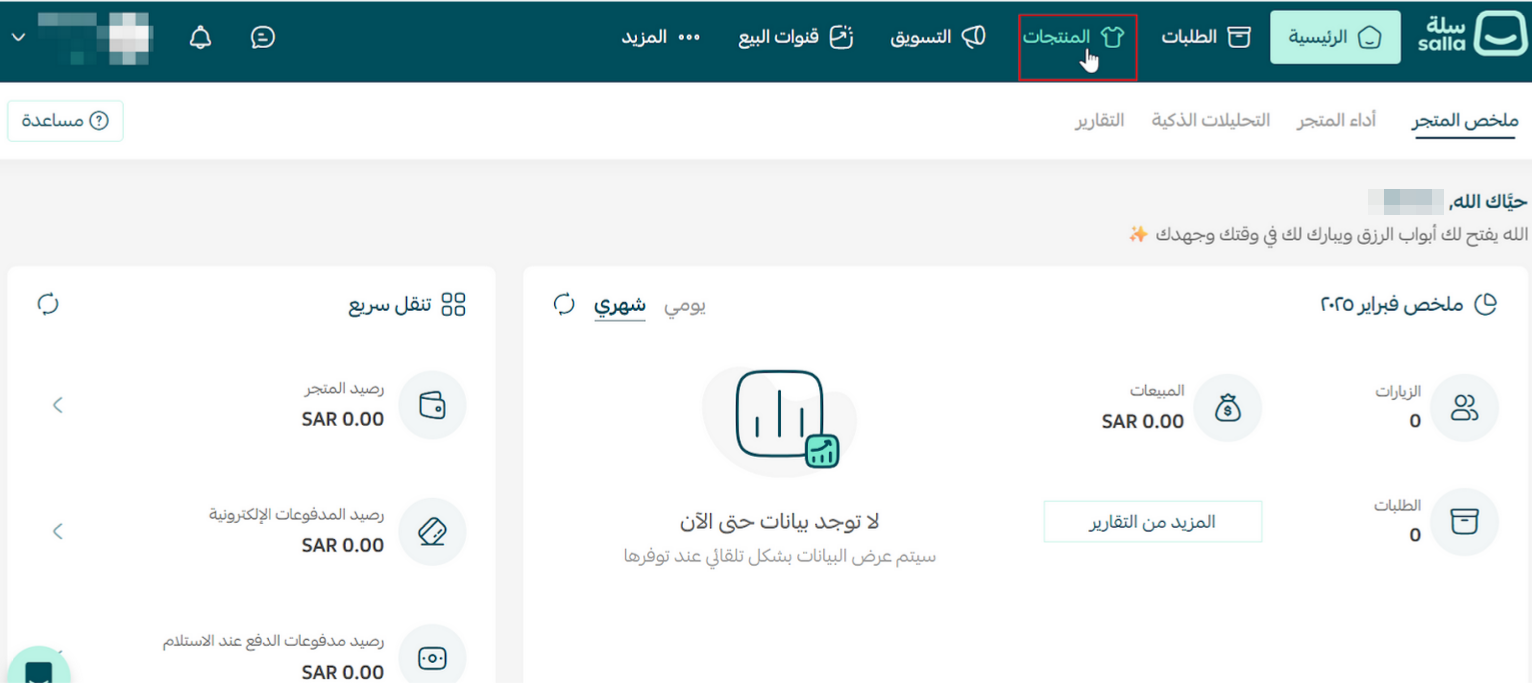
- After getting on the store dashboard, go to the Products page.
- Make some changes in one of the existing products.
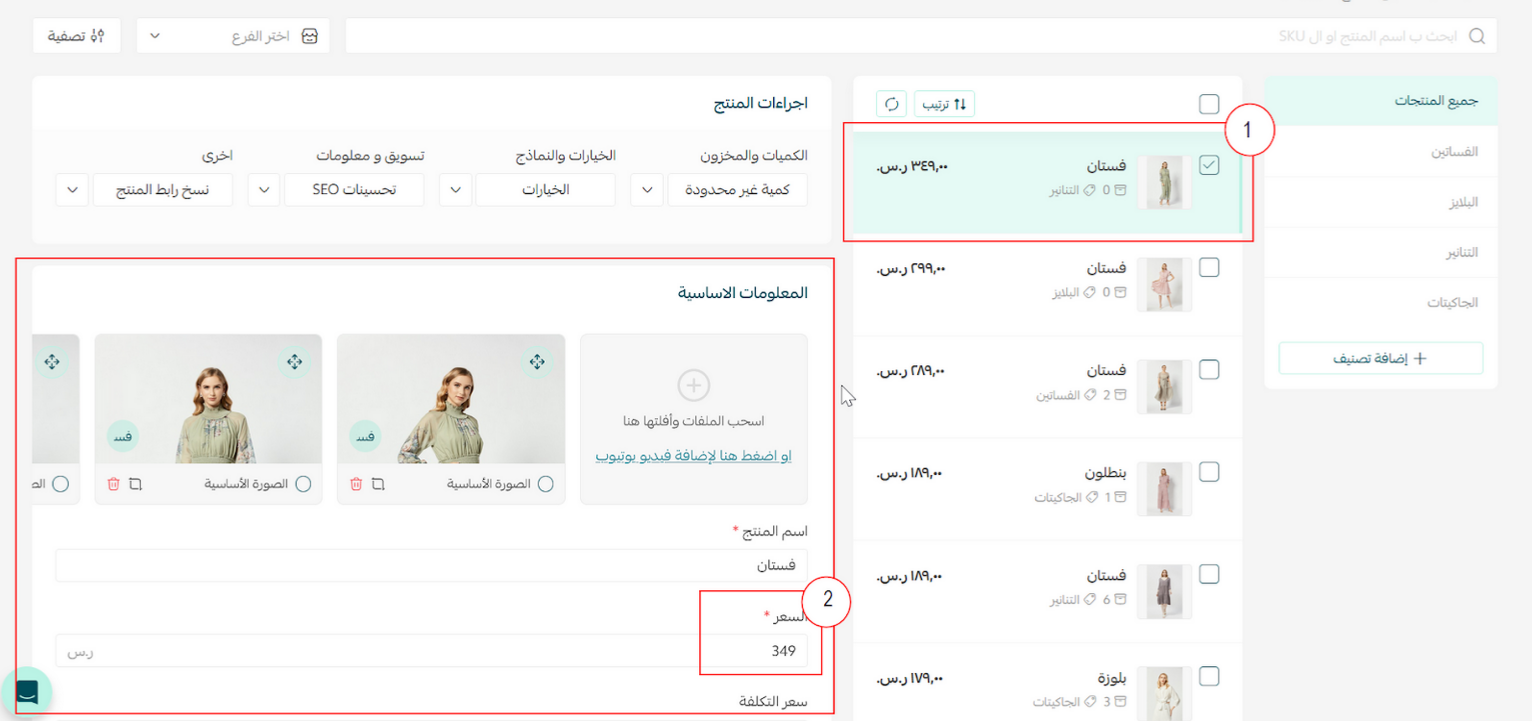
- After making the changes, click on the “Save” button to confirm the changes.
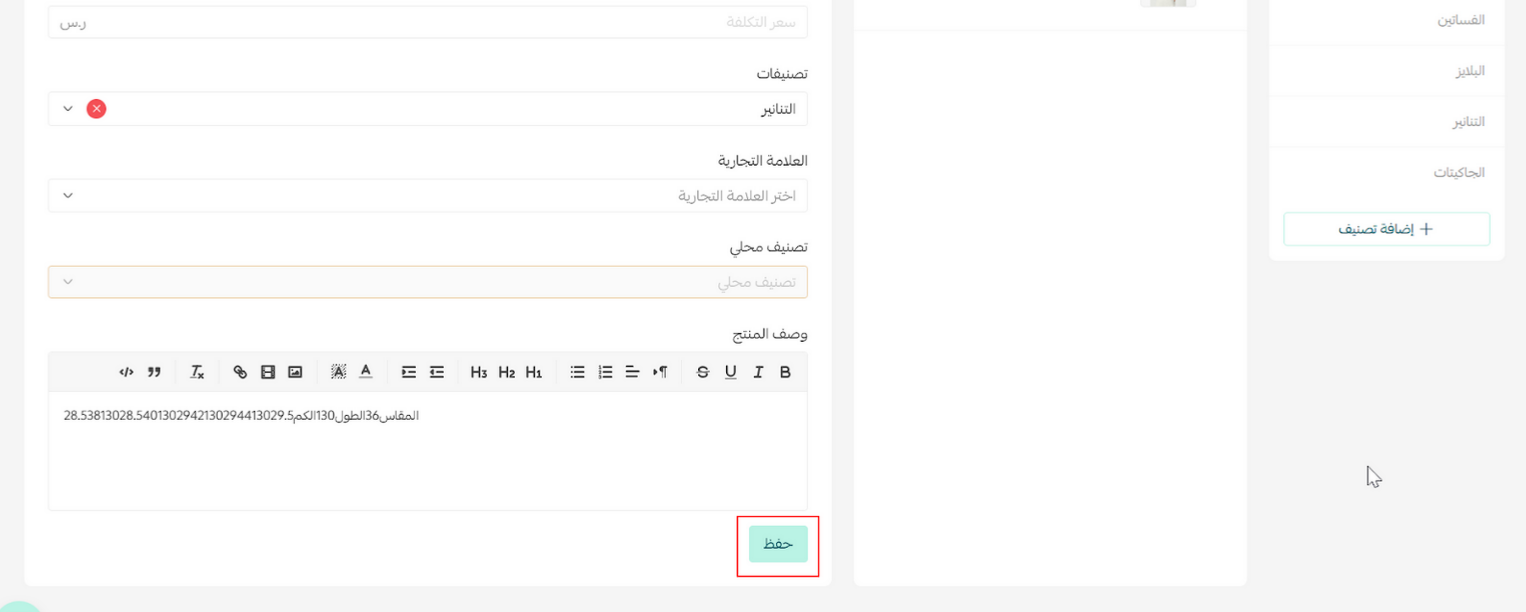
- On the [webhook.site](https://webhook.site) you will find the [“product.updated”](https://docs.salla.dev/433805m0) event.
### Part 4| Check Webhooks events with Salla Webhooks Log
Another way to check the event is using Salla Webhooks log in the Partners Portal. Read more about [Webhooks Log](https://salla.dev/blog/the-new-salla-apps-events-activity-log/) in this article.
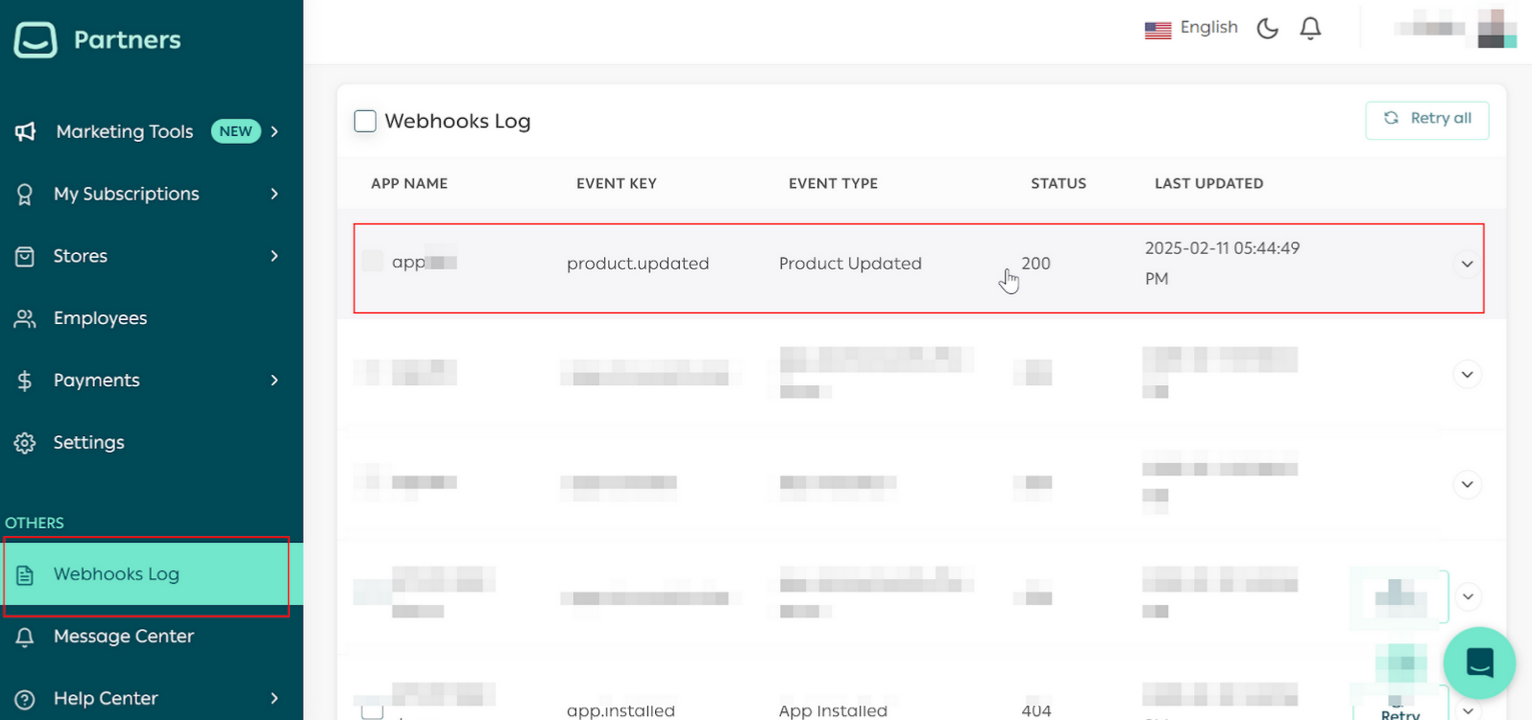
If the webhook data is shown as in the screenshot above, it means that Salla is delivering the webhooks correctly and that the problem is most likely with your server.
:::info[note]
You may also provide your header request parameters on the same page. Additionally, to build webhooks, you may use any API Request Builder, such as [Hoppscotch](https://hoppscotch.io/) or [Postman](https://www.postman.com/).
Check out the [Salla Webhooks doc page](https://docs.salla.dev/docs/merchent/b3A6NTU1NzcxMw-register-webhook) for additional information.
:::
After the Webhook environment is well-suited to start the troubleshooting, we will go through the following scenarios:
- [Webhook Server Troubleshooting](#webhook-server-troubleshooting)
- [URL Endpoint Access Troubleshooting](#url-endpoint-access-troubleshooting)
- [POST Data Troubleshooting](#post-data-troubleshooting)
#### 🔍 Webhook Server Troubleshooting
Following that, we will see if your server is allowing requests to the webhook endpoint and whether you're receiving the provided `POST` data correctly.
Make sure to adjust the webhook URL to your own test endpoint from the Salla dashboard's [Webhooks](https://s.salla.sa/settings/component/webhooks). And that would show you results based on that URL.
:::warning
Please verify that the activities performed in the testing endpoint do not affect your actual data.
:::
#### 🔍 URL Endpoint Access Troubleshooting
This test will help you determine whether your webhook endpoint accepts requests from Salla. For this examination:
- Create a `POST` endpoint that, whenever a request is submitted to it, adds a timestamp to a log file.
- Create an event (for example: order) (if your webhook was setup for order creation).
- Examine the log file a few seconds after the request is done to see if it includes the written timestamp.
- Check for any TLS/SSL handshake failure
- Send and Inspect a `POST` request over to Salla
- Examine the receiving endpoint for errors
If a request log is there after the request attempt, it confirms that your server granted access to the endpoint as intended.
If it did not write to your log, there is a good probability that the request did not reach the endpoint or that your server rejected it; to resolve this, follow these steps:
- Ensure that the URL in the Salla webhook settings is correct and you can check [Life active webhooks](https://docs.salla.dev/doc-421119#list-of-salla-store-events).
- Examine any responses from the `POST` call.
#### 🔍 POST Data Troubleshooting
The following step is to ensure that you are receiving the **POST Data** appropriately.
This troubleshooting mechanism is quite similar to the one mentioned above. In this example, we'll obtain the content of the `POST` request and save it to a file.
Here's an example of a successful webhook body from the `order.created` event: