App Snippet lets you extend any merchant store with custom JavaScript from the App Snippets section in the Salla Partners Portal. The Snippet is injected automatically when your app is installed. Salla uploads your snippet as a .js file to its CDN and serves it on stores that have your app installed, no deployment or hosting needed on your end.The editor has been rebuilt from the ground up. What was once an HTML field is now a dedicated JavaScript editor, which means raw markup injection is gone, replaced by a CDN-backed pipeline. Save uploads your snippet to the CDN. You can mock public App Settings values and click Refresh preview to test configuration on your demo store without re-saving, but any change to the JavaScript itself requires Save before it appears in the preview.In this article, we will cover how snippets are injected, how to work with store parameters, and walk through building a live chat integration using tawk.to.Migrate your App Snippet before 5 September 2026, then publish your updated application through the Salla Partners Portal.Migration Grace Period: 5 August 2026 – 5 September 2026 Overview#
App Snippet lets you inject custom JavaScript into your merchants' stores. The .js file is uploaded to Salla's CDN when you hit Save in the editor. Once a merchant installs your app, Salla injects that CDN-hosted file into their store automatically.App Snippet now requires valid JavaScript, no raw HTML or JSX. If you still have legacy HTML snippets, open them in the new editor, rewrite them as JavaScript, and Save to migrate to the CDN pipeline. Migration is required to stay supported on the platform; legacy inline snippets will not receive future improvements. <script src="..."> tag pointing to a Salla CDN URL, that is where your snippet is being served.Both Public and Private apps support App Snippet. Scroll down in your app details page on the Partners Portal to find the App Snippet section.App Snippet section in the Partners Portal
Add a New Snippet#
When creating a new snippet, the editor presents you with:| Field | Description |
|---|
| Snippet Name | A label to identify your snippet in the portal |
| JavaScript Editor | Write valid JS code here, HTML and JSX are not accepted |
| Preview Screen | Live preview of how your snippet renders on a demo store |
| Store Parameters | Reserved variables accessible via salla.config.get() |
| Mock values (Settings parameters only) | Set test values for public app.* fields to preview configuration on your demo store without re-saving. Store and user parameters use real data from the selected demo store. |
| Action Buttons | Reset, discards unsaved changes and restores the last saved content. Refresh preview, reloads the demo store iframe and applies current mock values (requires valid JS and a selected demo store). Save, uploads or updates your snippet on the CDN. |
The new App Snippet JS editor
Before using the preview:Select a demo store with your app already installed.
Save the snippet at least once so it is available on the CDN.
Mock values apply only to public app.* settings; store and user parameters use live demo-store data.
<body>. Maximum script size is 50,000 characters.
Available Parameters#
The following parameters are available across the Store and Customer objects.
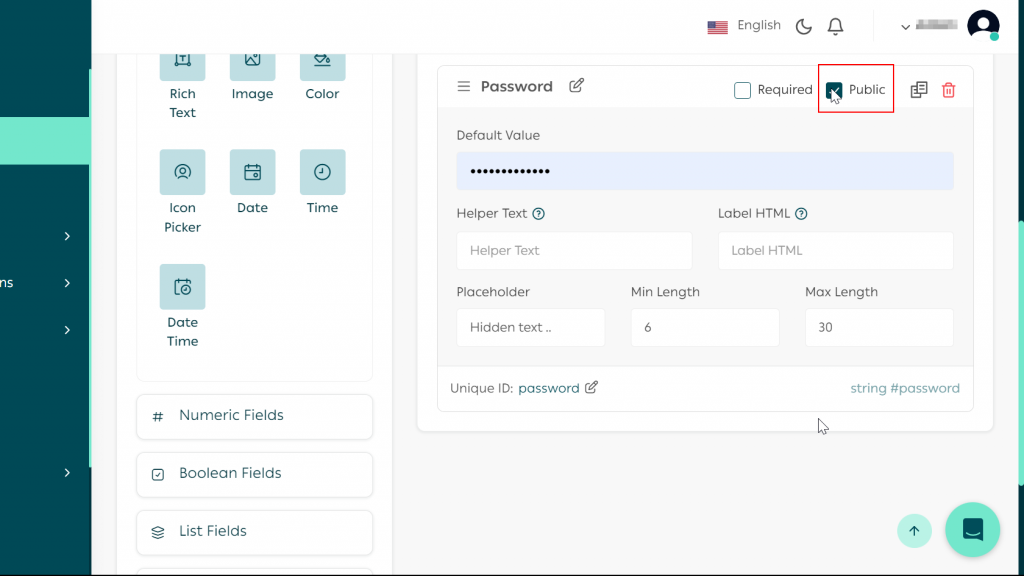
To expose a custom field from App Settings in the App Details page, open the App Settings editor and tick the Public option on the field. It will then be accessible via salla.config.get("app.yourFieldId") in your snippet, where yourFieldId matches the field's ID in App Settings.Read more about App Settings here.
Mocked Parameter Values#
The editor lets you set mock values for public App Settings (app.*) in the Settings parameters panel. Click Mock values to reveal the inputs, then Refresh preview to apply them.Setting mock values in the editor
Preview refreshed with mocked values
Update or Remove a Snippet#
Click the three-dot menu next to any snippet to update or remove it. When you save an update, Salla re-uploads your snippet to the CDN, and the change is reflected right away on your demo stores. Merchant stores that have your app installed keep the snippet from your last approved publication; they receive the change only after you submit a new publish request and it is approved.Three-dot menu for snippet actions
JavaScript Rules and Guidelines#
Violating these rules will result in rejection during the app review process.
JavaScript Only
Your snippet must be valid JavaScript. HTML and JSX are not accepted.
No iframes or Embeds
The use of iframe and embed tags is strictly prohibited for security reasons.
No History Manipulation
Functions like history.replaceState() are strictly prohibited for security reasons.
No Dynamic Code Execution
Avoid eval() and similar dynamic code execution, snippets using them will be rejected during app review.
Clean Up Intervals
If you use setInterval(), always conditionally call clearInterval() to prevent memory leaks and repeated background execution.
Minimal Logging
Avoid console.log() for general debugging. Reserve it for cases where something might genuinely go wrong.
Submit Readable Code
Share deobfuscated code separately when submitting for review, for faster feedback.
Keep a Live Demo Store
Maintain at least one demo store with the snippet running so the review team can test it.
Use innerHTML Carefully
Use innerHTML responsibly. Do not use body as a direct reference.After completing the migration and verifying your snippet works as expected, submit a new publish request of your application through the Salla Partners Portal so merchants receive the updated implementation.Before publishing, make sure you have:✅ Migrated your App Snippet to the new JavaScript editor.
✅ Tested the snippet on a demo store.
✅ Verified all functionality works correctly.
✅ Submitted a new app publish request.